
Windows Update Errors: What They Mean and How to Fix Them
Windows Update usually works quietly in the background. The problem starts when an update gets stuck, fails to install, or shows an unfamiliar error code such as 0x80070002, 0x800f081f, or 0x80070422.
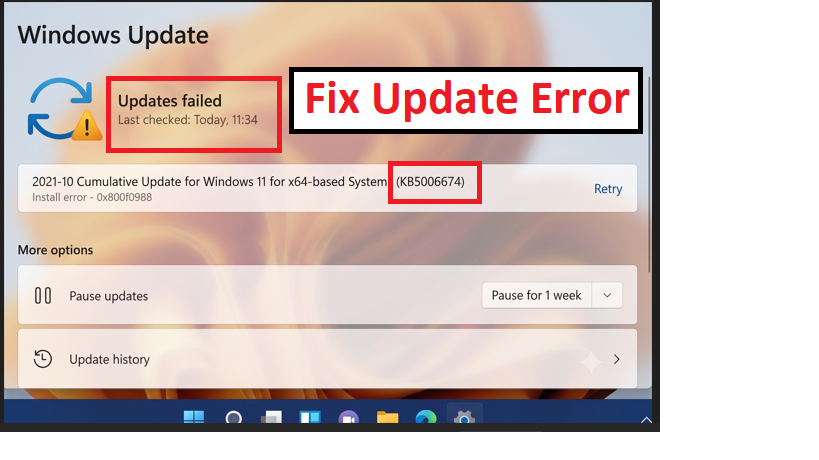
The error code can point toward the problem, but it does not always provide the complete diagnosis. Update failures can be related to corrupted files, disabled services, damaged Windows components, driver problems, insufficient storage, network issues, or a problem with a specific update.
This guide covers the most common Windows Update errors and the practical steps you can take to fix them, starting with the safest solutions before moving to more advanced repairs.
Note: These steps mainly apply to Windows 10 and Windows 11. Some menus may look different depending on your Windows version. Windows 10 reached the end of regular support on October 14, 2025. If your computer supports Windows 11, upgrading to a supported version is recommended.
Common Windows Update Error Codes
| Error | Common cause | Start here |
|---|---|---|
| 0x80070002 | Missing or corrupted update files | Reset Update components |
| 0x80070005 | Access or permission problem | Check services and system files |
| 0x80070103 | Driver already installed or not applicable | Check driver updates |
| 0x80070422 | Required service is disabled | Check Windows services |
| 0x800f081f | Required Windows source files unavailable | Run DISM |
| 0x800f0988 | Servicing or update installation problem | Reset components + DISM/SFC |
| 0x80240034 | Update download or installation failure | Reset Update components |
| 0x8024200D | Incomplete update download | Download the update again |
| 0x8024402F | Communication problem with Update services | Check network and proxy |
| 0x80070306 | Update installation failure | Repair Windows components |
These are common causes, not guaranteed explanations for every occurrence of an error. The exact cause can vary depending on the system and the update that failed.
Start With These Checks
Before changing Windows components or running repair commands, try these simple checks.
Restart your PC
A pending restart can prevent another update from completing.
Restart Windows, then go to:
Settings → Windows Update → Check for updates
Check your Internet connection
Windows Update needs a reliable connection to communicate with Microsoft’s services.
If the connection is unstable:
- Try Ethernet instead of Wi-Fi.
- Restart your router if necessary.
- Disconnect from a VPN temporarily.
- Check whether other websites work normally.
A faster connection is not always a better connection. Stability matters too.
Check free storage
Windows needs temporary space to download, unpack, and install updates.
Go to:
Settings → System → Storage
Make sure the system drive has enough free space.
Check the date and time
Incorrect system time can interfere with secure online connections.
Go to:
Settings → Time & language → Date & time
Enable automatic time synchronization if available.
Disconnect unnecessary USB devices
If you are installing a major Windows update, temporarily disconnect external devices that are not required.
Run Windows Update Troubleshooter
Windows includes a built-in troubleshooter that can detect some common update problems.
Windows 11
Go to:
Settings → System → Troubleshoot → Other troubleshooters → Windows Update → Run
Windows 10
Go to:
Settings → Update & Security → Troubleshoot → Additional troubleshooters → Windows Update
Follow the instructions and restart your computer if Windows asks you to.
The troubleshooter cannot fix every problem, but it is a good first step because it does not require manually changing system files.
Error 0x80070002
0x80070002 can appear when Windows cannot find files or components it expects to be available.
With Windows Update, corrupted or incomplete update data can be one possible cause.
Reset the Update cache
Open Command Prompt as administrator.
Run these commands one at a time:
net stop wuauserv
net stop bits
ren C:\Windows\SoftwareDistribution SoftwareDistribution.old
net start wuauserv
net start bits
Restart your computer and check for updates again.
Why does this work?
The SoftwareDistribution folder stores Windows Update data and temporary files.
Renaming it allows Windows to create a fresh folder when the Update service runs again.
This does not remove your personal documents, photos, or other personal files.
Error 0x80070005
0x80070005 is commonly associated with an Access Denied condition.
In Windows Update, possible causes include permissions problems, security software interference, or damaged system components.
Try these steps:
- Restart the computer.
- Check Windows Update again.
- Temporarily disconnect any VPN or proxy.
- Check that Windows Update and BITS are running.
- Run DISM and SFC.
- If one particular update fails, search for its KB number on Microsoft’s support website.
Avoid downloading random registry “fix” files from websites you do not trust. A one-click repair tool is not automatically safe just because it has a large green button.
Error 0x80070103
The 0x80070103 error can appear when Windows Update attempts to install a driver that is already installed or is not applicable to the system.
This does not necessarily mean there is a serious Windows problem.
Check:
Settings → Windows Update → Advanced options → Optional updates
If the problem involves a specific device, check the manufacturer’s official support page for its driver.
A newer driver is not automatically a better driver. Compatibility matters.
Error 0x80070422
0x80070422 can occur when a required Windows service is disabled or not running.
Check Windows services
Press:
Win + R
Enter:
services.msc
Press Enter.
Find:
Windows Update
Then check:
Background Intelligent Transfer Service (BITS)
If a required service is stopped, it may need to be started.
Avoid changing unrelated services. Windows already has enough opportunities for humans to accidentally create a second problem while fixing the first one.
Error 0x800f081f
0x800f081f commonly indicates that Windows cannot find required source files for a servicing or component operation.
Run DISM
Open Command Prompt as administrator and run:
DISM.exe /Online /Cleanup-Image /RestoreHealth
Wait for the operation to finish.
Then run:
sfc /scannow
Restart Windows and try the update again.
If DISM reports that it cannot find the required source files, you may need a suitable Windows installation source rather than repeatedly running the same command.
Error 0x800f0988
0x800f0988 can appear during Windows Update installation and may be related to Windows servicing components.
Try this order:
- Restart Windows.
- Check Windows Update again.
- Reset the SoftwareDistribution folder.
- Run:
DISM.exe /Online /Cleanup-Image /RestoreHealth
- Then run:
sfc /scannow
- Restart the computer.
If the problem remains, find the KB number of the failed update and search Microsoft’s official documentation for that specific update.
Error 0x80240034
The 0x80240034 error can occur when an update cannot be downloaded or installed correctly.
Start with:
- Restarting Windows.
- Checking free storage.
- Checking the Internet connection.
- Running Windows Update Troubleshooter.
- Resetting Windows Update components.
- Running DISM and SFC.
If the same update keeps failing, note its KB number and try the Microsoft Update Catalog.
Error 0x8024200D
0x8024200D can be associated with an update that did not download or complete correctly.
Try downloading the update again by resetting the Update cache.
Open Command Prompt as administrator:
net stop wuauserv
net stop bits
ren C:\Windows\SoftwareDistribution SoftwareDistribution.old
net start wuauserv
net start bits
Restart Windows and try the update again.
If it still fails, check the specific KB number for known problems.
Error 0x8024402F
0x8024402F can occur when Windows has trouble communicating with Update services.
Before repairing Windows, check your connection.
Look at:
- Internet stability
- VPN settings
- Proxy settings
- Firewall or security software
- DNS configuration
- Other websites and online services
If the computer belongs to a company or organization, network policies may also affect Windows Update.
Error 0x80070306
0x80070306 can appear during update installation.
Because the code alone does not identify one universal cause, start with the basic checks and then repair Windows components.
Run:
DISM.exe /Online /Cleanup-Image /RestoreHealth
Then:
sfc /scannow
Restart Windows.
If only one KB update fails, search for that KB number on Microsoft Support and the Microsoft Update Catalog.
Reset Windows Update Components
If resetting SoftwareDistribution did not solve the problem, you can reset additional Update components.
Open Command Prompt as administrator.
Stop the services:
net stop wuauserv
net stop bits
net stop cryptsvc
net stop msiserver
Rename the folders:
ren C:\Windows\SoftwareDistribution SoftwareDistribution.old
ren C:\Windows\System32\catroot2 catroot2.old
Start the services again:
net start wuauserv
net start bits
net start cryptsvc
net start msiserver
Restart the computer and try Windows Update again.
What is Catroot2?
Catroot2 is used by Windows for cryptographic and servicing-related operations.
Do not confuse it with the Catroot folder. The command above specifically targets Catroot2.
Repair Windows With DISM and SFC
If Windows Update continues to fail, Windows itself may contain damaged system components.
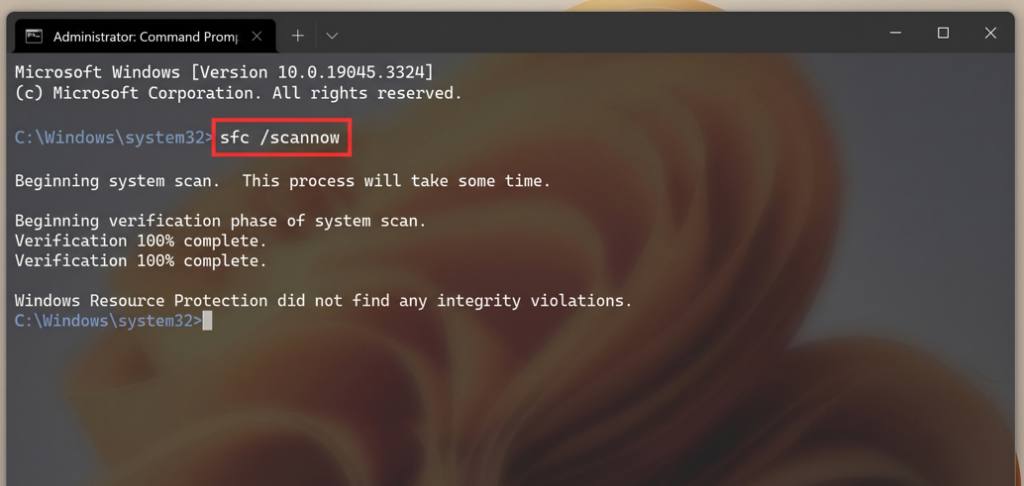
Microsoft provides two built-in tools for this situation.
Run DISM
Open Command Prompt as administrator:
DISM.exe /Online /Cleanup-Image /RestoreHealth
Wait until it finishes.
Run SFC
Then run:
sfc /scannow
SFC checks protected Windows system files and attempts to repair damaged or missing files.
Restart the computer when both operations are complete.
Why run DISM first?
DISM can repair the Windows component store that SFC uses as part of its repair process.
Install a Failed Update Manually
Sometimes Windows Update fails even though the individual update package can still be installed manually.
First, find the failed update’s KB number.
Then:
- Open the official Microsoft Update Catalog:https://www.catalog.update.microsoft.com/
- Search for the KB number.
- Find the package that matches your Windows version and architecture.
- Download it.
- Run the installer.
- Restart Windows if requested.
Check your Windows version
Go to:
Settings → System → About
Check:
- Windows edition
- Windows version
- System type
Make sure the package matches your Windows release and system architecture.
Windows Update Is Very Slow
A slow update is not necessarily a failed update.
Windows may be:
- Downloading files
- Verifying packages
- Extracting files
- Updating system components
- Writing files to storage
- Installing drivers
- Cleaning up old update data
Older computers with HDDs can feel particularly slow during these operations because HDDs are much slower than SSDs at handling many small read/write operations.
High disk usage by itself does not mean the drive is defective.
If the computer is slow even when Windows Update is not running, check the drive’s health, available storage, RAM usage, and overall system performance.
Can Internet Problems Affect Windows Update?
Yes, but not every Windows Update error is caused by the Internet.
Possible network-related problems include:
- Unstable Wi-Fi
- Frequent connection drops
- Packet loss
- DNS problems
- VPN or proxy configuration
- Firewall restrictions
- Network authentication problems
A fast connection that repeatedly disconnects is less useful for a large download than a slower connection that remains stable.
If you suspect the network:
- Test other websites.
- Try Ethernet if possible.
- Temporarily disconnect from a VPN.
- Check proxy settings.
- Restart network equipment if appropriate.
- Try Windows Update again.
When Should You Repair Windows?
If Windows Update still fails after:
- Resetting Update components
- Running DISM
- Running SFC
- Checking storage
- Checking services
- Trying the specific KB manually
the problem may be deeper than a damaged Update cache.
Before formatting the computer, consider Microsoft’s Windows recovery and repair options.
Depending on your Windows version and situation, an in-place repair or upgrade may repair Windows components while preserving personal files and, in supported cases, installed applications.
Always back up important files before performing a major repair or reinstalling Windows.
A clean installation should be a later option, not the first solution to every Windows Update problem.
Windows Update Quick Checklist
If you want the shortest troubleshooting path, follow this order.
Start here
- Restart the computer.
- Check your Internet connection.
- Check free storage.
- Check date and time.
- Disconnect unnecessary USB devices.
Then try Windows tools
- Run Windows Update Troubleshooter.
- Check Windows Update and BITS.
- Run DISM.
- Run SFC.
Reset the Update cache
net stop wuauserv
net stop bits
ren C:\Windows\SoftwareDistribution SoftwareDistribution.old
net start wuauserv
net start bits
If that fails
- Reset additional Update components.
- Find the failed KB number.
- Check Microsoft Support.
- Try Microsoft Update Catalog.
- Consider Windows repair options.
Frequently Asked Questions
Why does Windows Update keep failing?
There is no single cause.
Common possibilities include corrupted update files, damaged Windows components, disabled services, insufficient storage, network problems, incompatible drivers, or an issue with a particular update.
The error code and KB number can help narrow down the problem.
Does Windows Update need fast Internet?
Not necessarily.
A stable connection is generally more important than extremely high download speed.
Will resetting SoftwareDistribution delete my files?
No.
The folder contains Windows Update-related data. Renaming it does not delete your personal documents, photos, videos, or other personal files.
Is DISM safe to use?
DISM is a built-in Windows repair tool provided by Microsoft.
Run the command exactly as written and allow the process to finish.
Is SFC safe to use?
Yes. SFC is also a built-in Windows utility designed to check protected system files and repair problems when possible.
Should I permanently disable Windows Update?
No.
Windows updates contain security fixes and other important improvements. Permanently disabling them can leave your system exposed to known vulnerabilities.
It is better to diagnose the reason an update fails.
What if one KB update keeps failing?
Write down the KB number and search for it on Microsoft’s official support pages.
You can also search for it in the Microsoft Update Catalog and try installing the appropriate package manually.
Should I reinstall Windows if Windows Update fails?
Not immediately.
Try the built-in troubleshooting and repair tools first.
A repair installation or clean installation may be appropriate if Windows has broader corruption or normal repair methods have failed.
Final Thoughts
Windows Update error codes can look complicated, but the code is usually only the beginning of the diagnosis.
Start with the simple checks: restart Windows, verify your connection, check storage, and run the Windows Update troubleshooter.
If the problem continues, reset the Update components and run DISM followed by SFC.
When one specific update keeps failing, the KB number is especially useful. It lets you investigate the individual update instead of making unnecessary changes to the entire operating system.
And if Windows becomes extremely slow while installing an update, remember that high disk usage does not automatically mean the update is broken. Older HDD-based computers can struggle with the amount of read/write activity involved in modern Windows maintenance.
The best fix is not the one with the most commands. It is the one that addresses the actual cause of the failure.
For Windows repairs involving system files, drivers, firmware, or major operating system changes, use official Microsoft documentation and trusted sources whenever possible.