How to Fix “DNS Server Not Responding” Error
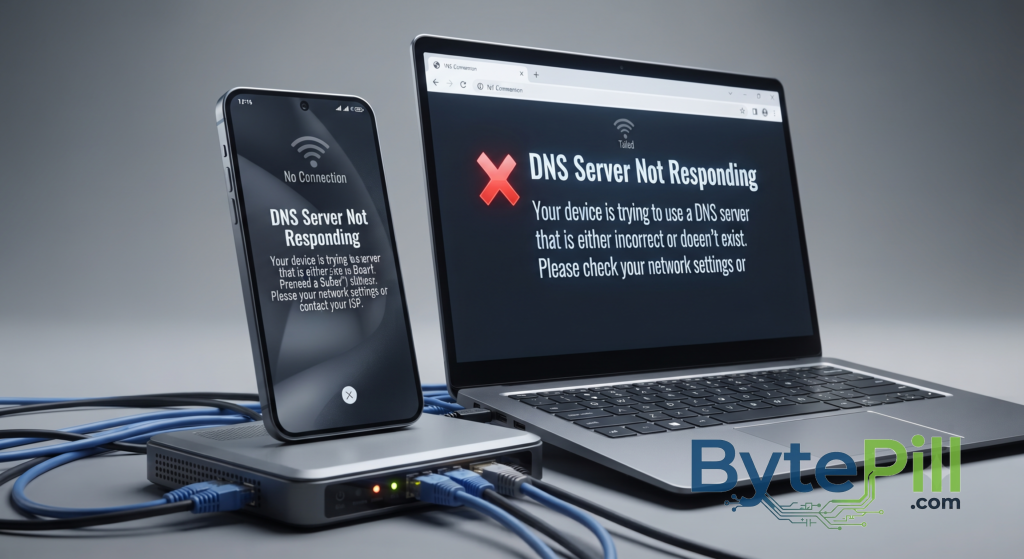
Your phone or computer may show that it is connected to Wi-Fi, yet websites refuse to load, apps stay offline, or Windows displays an error such as “DNS Server Not Responding.”
The confusing part is that your Wi-Fi connection can look completely normal while DNS is preventing your device from finding websites.
DNS, or Domain Name System, translates website names such as google.com into IP addresses that devices use to communicate over the Internet.
When DNS stops working correctly, you may experience:
- Websites that refuse to load
- Apps that cannot connect to the Internet
- “Connected without Internet” messages
- Slow or failed website lookups
- DNS-related errors in Windows
- Internet working on one device but not another
The solution depends on the device you are using.
If you are having the problem on a phone, start with the mobile section below. Windows users can skip directly to the Windows section.
If You Are Using an Android Phone
Android phones can experience DNS problems for several reasons, including incorrect Wi-Fi settings, VPN applications, Private DNS configuration, or temporary problems with the router.
Start with the following solutions in order.
1. Restart Your Phone and Router
Before changing any network settings, restart both your phone and router.
On your phone:
- Restart the device.
- Wait for Android to fully boot.
- Reconnect to Wi-Fi.
- Try opening several websites.
If the problem remains, restart your router as well.
Disconnect the router from power for around 30 seconds, reconnect it, and wait until the Internet connection returns.
Then test the phone again.
Check another device
If possible, connect another phone or computer to the same Wi-Fi network.
If every device has the same problem, the issue may be with the router or Internet connection rather than your Android phone.
2. Forget the Wi-Fi Network and Reconnect
A corrupted or incorrect Wi-Fi configuration can sometimes interfere with normal Internet access.
On most Android phones:
- Open Settings.
- Go to Wi-Fi or Network & Internet.
- Select the connected Wi-Fi network.
- Tap Forget.
- Confirm the action.
- Connect to the Wi-Fi network again.
- Enter your Wi-Fi password.
The exact menu names may differ between Samsung, Xiaomi, Google Pixel, OnePlus, and other Android devices.
After reconnecting, open a few websites and check whether the problem has disappeared.
3. Check Android Private DNS
Modern versions of Android include a feature called Private DNS.
Depending on your device, you may find it under:
Settings → Network & Internet → Private DNS
On some Samsung phones, it may be located under:
Settings → Connections → More connection settings → Private DNS
The exact location can vary depending on the manufacturer and Android version.
You may see options such as:
- Off
- Automatic
- Private DNS provider hostname
For normal troubleshooting, Automatic is a good starting point.
If you previously entered a custom Private DNS hostname and Internet access stopped working afterward, switching back to Automatic can help determine whether that configuration is responsible.
Using a custom Private DNS provider
If you want to test a public DNS service, Android supports hostname-based Private DNS on supported versions.
For Cloudflare, enter:
one.one.one.one
 Or
1dot1dot1dot1.cloudflare-dns.com
For Google Public DNS:
dns.google
Tap Save and test your connection.
4. Disable VPN and Network Filtering Apps
VPN applications can change the way DNS requests are handled.
Some ad blockers and security applications also create local VPN connections to filter network traffic.
If you are using one of these applications, temporarily disable it and test the Internet connection again.
If the connection immediately starts working, the application or its DNS configuration may be responsible.
Do not leave security software disabled permanently just to make the Internet work. That would be a rather creative solution to a networking problem.
5. Reset Network Settings on Android
If the previous solutions did not help, resetting the network configuration can resolve persistent connection problems.
Depending on your Android version, look for an option similar to:
Settings → System → Reset options → Reset Wi-Fi, mobile & Bluetooth
Samsung devices may use a menu similar to:
Settings → General management → Reset → Reset Wi-Fi and Bluetooth settings
The wording varies between manufacturers.
A network reset can remove:
- Saved Wi-Fi networks
- Wi-Fi passwords
- Bluetooth pairings
- Some network preferences
It does not normally delete your photos, videos, applications, or personal files.
After the reset, reconnect to your Wi-Fi network and test the Internet again.
If You Are Using an iPhone
iPhone does not normally display the exact Windows message “DNS Server Not Responding,” but DNS problems can produce similar symptoms.
You may find that:
- Websites do not load
- Apps cannot connect
- Wi-Fi appears connected but Internet access does not work
- Some websites work while others fail
Try the following solutions.
1. Restart Your iPhone and Router
Restart your iPhone and reconnect to Wi-Fi.
If that does not help, restart the router as well.
After the connection returns, test several websites.
If other devices connected to the same Wi-Fi network are also offline, the problem is probably not specific to your iPhone.
2. Forget the Wi-Fi Network
To remove the existing Wi-Fi configuration:
- Open Settings.
- Tap Wi-Fi.
- Tap the information icon next to your network.
- Select Forget This Network.
- Confirm.
- Connect to the network again.
- Enter the Wi-Fi password.
Test the connection after reconnecting.
3. Change DNS Manually on iPhone
iOS allows you to configure DNS servers for an individual Wi-Fi network.
Go to:
Settings → Wi-Fi
Then:
- Tap the information icon next to the connected network.
- Tap Configure DNS.
- Select Manual.
- Remove existing DNS servers if necessary.
- Tap Add Server.
- Enter the DNS server you want to use.
- Tap Save.
For Cloudflare:
1.1.1.1
1.0.0.1
For Google:
8.8.8.8
8.8.4.4
These settings apply to the Wi-Fi network you configured.
They do not automatically change DNS settings for every Wi-Fi network your iPhone connects to.
4. Check VPN and Security Applications
If you use a VPN, DNS filtering application, or security software that modifies network traffic, temporarily disable it and test the connection.
If the Internet starts working normally, check that application’s DNS and network settings.
If you do not use any VPN or network filtering software, move to the next step.
5. Reset Network Settings on iPhone
If the problem continues, you can reset the iPhone’s network configuration.
Go to:
Settings → General → Transfer or Reset iPhone → Reset → Reset Network Settings
You may need to enter your device passcode.
This can remove:
- Saved Wi-Fi networks
- Wi-Fi passwords
- VPN and network configurations
- Some cellular and network settings
Your photos, videos, apps, and other personal files are not normally deleted by a network settings reset.
You will need to reconnect to your Wi-Fi networks afterward.
Still Having the Problem on Your Phone?
Before changing more settings, determine whether the problem is actually your phone.
Try one of these tests:
Test another device on the same Wi-Fi
If another phone or computer also cannot access websites, the problem may be with:
- Your router
- Your ISP
- DNS servers provided by the network
- The Internet connection itself
Try your phone on another network
Connect your phone to another Wi-Fi network or use mobile data.
If websites work normally on the other connection, your phone is probably fine and the original network is more likely to be responsible.
This simple test can save you from changing settings that were never broken in the first place.
If You Are Using Windows
Windows provides more detailed tools for diagnosing DNS problems.
If you see an error such as:
“DNS Server Not Responding”
or websites fail to load while Windows still shows that you are connected to Wi-Fi or Ethernet, start with the following solutions.
1. Restart Your PC and Router
Restart your Windows computer first.
If the problem remains:
- Disconnect your router from power.
- Wait around 30 seconds.
- Reconnect it.
- Wait until the Internet connection is restored.
- Restart Windows if necessary.
- Test several websites.
If every device on the network has the same problem, investigate the router or ISP before making major changes to Windows.
2. Check Whether DNS Is Actually the Problem
Windows includes useful networking commands that can help determine whether DNS is failing.
Open Command Prompt.
Run:
ping 1.1.1.1
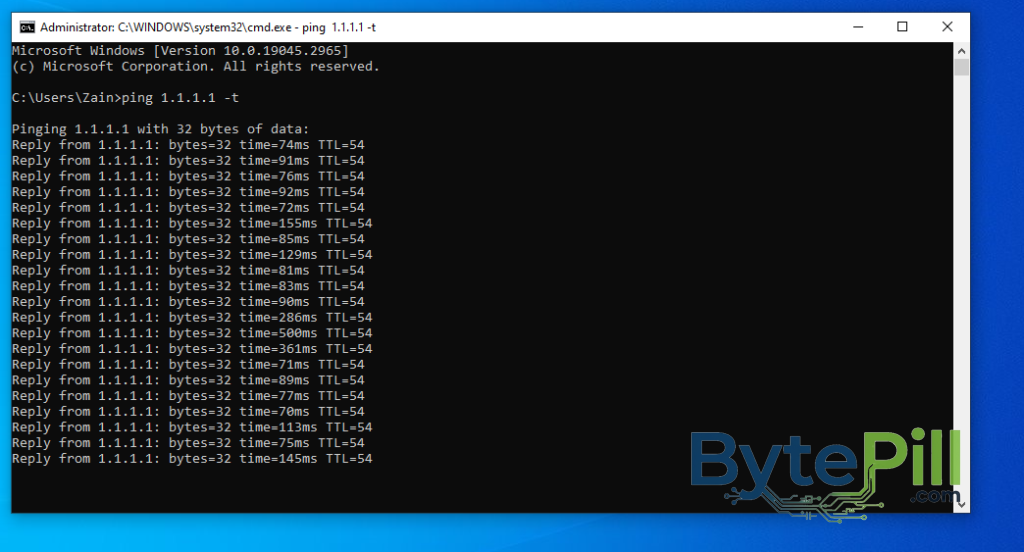
Then:
nslookup google.com
You can also try:
ping google.com
What do the results tell you?
If ping 1.1.1.1 works but nslookup google.com fails, DNS is a strong suspect.
If both tests fail, the problem may involve the network connection, router, firewall, ISP, or another component.
The error message alone is not always enough to identify the cause.
3. Flush the DNS Cache
Windows stores recently resolved DNS information in a local cache.
If the cache contains outdated or corrupted information, clearing it may solve the problem.
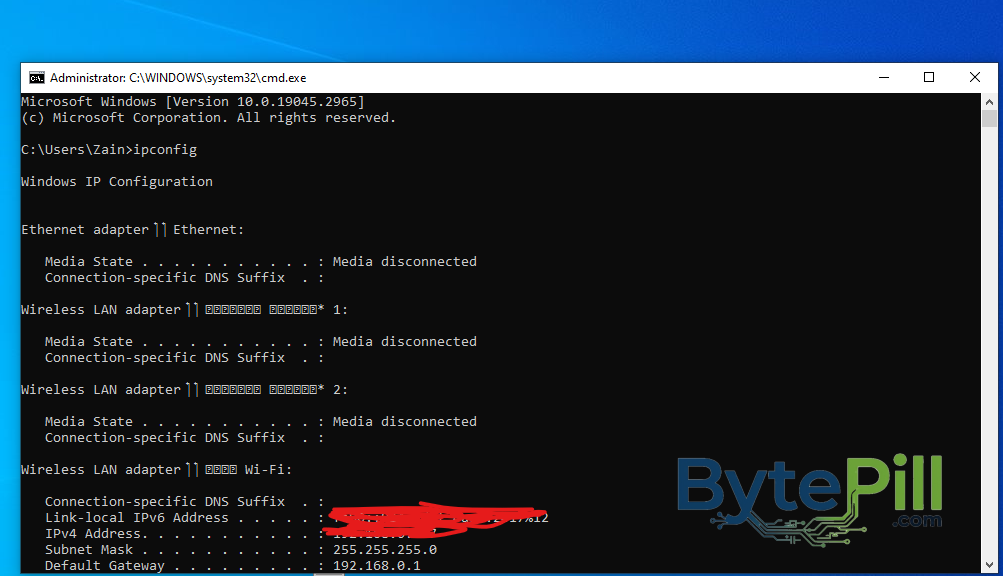
Open Command Prompt as administrator and run:
ipconfig /flushdns
You should see a message indicating that the DNS Resolver Cache was successfully flushed.
Then try opening the website again.
4. Reset Windows Network Components
If flushing DNS did not help, reset several Windows networking components.
Open Command Prompt as administrator and run each command separately:
ipconfig /registerdns
ipconfig /release
ipconfig /renew
netsh winsock reset
netsh int ip reset
Restart your computer afterward.
What do these commands do?
- ipconfig /registerdns refreshes DNS registration information.
- ipconfig /release releases the current DHCP configuration.
- ipconfig /renew requests a new IP configuration.
- netsh winsock reset resets the Windows Winsock catalog.
- netsh int ip reset resets TCP/IP configuration.
Some commands can temporarily disconnect your computer from the network. This is normal.
5. Change the DNS Server on Windows
Your computer normally receives DNS server information automatically from your router or network.
If those DNS servers are unavailable or unreliable, you can test a different DNS provider.
Common public DNS services include:
| Provider | Preferred DNS | Alternate DNS |
|---|---|---|
| Cloudflare | 1.1.1.1 | 1.0.0.1 |
| 8.8.8.8 | 8.8.4.4 | |
| Quad9 | 9.9.9.9 | 149.112.112.112 |
How to change DNS in Windows
- Press Windows Key + R.
- Type:
ncpa.cpl
- Press Enter.
- Right-click your active Wi-Fi or Ethernet connection.
- Select Properties.
- Select Internet Protocol Version 4 (TCP/IPv4).
- Click Properties.
- Select Use the following DNS server addresses.
- Enter your preferred DNS addresses.
- Click OK.
Open several websites to test the connection.
Does changing DNS increase Internet speed?
Not directly.
DNS does not increase your connection’s bandwidth.
However, a different DNS service may respond more reliably or quickly on your particular network.
6. Disable VPN or Proxy Temporarily
VPNs and proxies can alter DNS requests and network traffic.
If you use a VPN, disconnect it temporarily and test the connection.
You can also check Windows proxy settings:
Settings → Network & Internet → Proxy
If a manual proxy is configured, make sure you know why it is enabled before changing it, especially if the computer belongs to a company, school, or organization.
7. Check Your Network Adapter
A damaged or incorrectly configured network adapter can also cause DNS and Internet problems.
To check it:
- Right-click Start.
- Select Device Manager.
- Expand Network adapters.
- Locate your Wi-Fi or Ethernet adapter.
- Look for a warning icon.
If the adapter is disabled, enable it.
If you suspect a driver problem, use Windows Update or download the correct driver from your computer or motherboard manufacturer’s official website.
Avoid downloading drivers from random websites simply because they promise a “one-click fix.”
8. Disable Unused Virtual Network Adapters
VPN software, VirtualBox, VMware, and other networking applications can create virtual network adapters.
In some situations, these adapters can interfere with network configuration.
Press:
Windows Key + R
Enter:
ncpa.cpl
Look for network adapters that you recognize as belonging to VPN or virtualization software.
Do not disable an adapter unless you know what it is used for.
If you are unsure, leave it alone.
9. Reset Windows Network Settings
If none of the previous solutions work, Windows provides a complete network reset.
Windows 11
Go to:
Settings → Network & internet → Advanced network settings → Network reset
Select Reset now.
Windows 10
Go to:
Settings → Network & Internet → Status → Network reset
Select Reset now.
Windows will restart after the reset.
Important
Network Reset can remove saved network configurations and may require you to reconnect to Wi-Fi or configure VPN software again.
Make sure you know your Wi-Fi password before using it.
What If DNS Works but the Internet Still Does Not?
Changing DNS will not fix every Internet problem.
Your connection can fail because of:
- Router problems
- ISP outages
- Weak Wi-Fi signal
- Damaged Ethernet cables
- Incorrect IP configuration
- Firewall restrictions
- VPN software
- Faulty network hardware
- DNS service outages
If changing DNS does nothing, stop changing DNS repeatedly and investigate the rest of the network.
How to Find Where the Problem Is
A simple comparison can tell you a lot.
Only one device is affected
The problem is probably local to that device.
Check:
- DNS configuration
- Network settings
- VPN
- Proxy
- Network drivers
- Security software
Every device is affected
The problem may be related to:
- Router configuration
- ISP connection
- DNS servers provided by the ISP
- Internet outage
- WAN connection
- Network equipment
Your device works on another network
If your phone or computer works normally when connected to another Wi-Fi network or mobile hotspot, the original network is likely the source of the problem.
Which DNS Server Should You Use?
There is no single DNS provider that is automatically the fastest for everyone.
Popular choices include:
Cloudflare
1.1.1.1
1.0.0.1
Google Public DNS
8.8.8.8
8.8.4.4
Quad9
9.9.9.9
149.112.112.112
Performance can vary depending on your location, ISP, routing, and network conditions.
For basic troubleshooting, using a reputable public DNS service is generally sufficient.
Quick DNS Troubleshooting Checklist
If you want the shortest troubleshooting path, use this order.
Android
- Restart the phone and router.
- Forget and reconnect to Wi-Fi.
- Check Private DNS.
- Disable VPN or filtering applications temporarily.
- Reset network settings if necessary.
iPhone
- Restart the iPhone and router.
- Forget and reconnect to Wi-Fi.
- Check DNS settings under Wi-Fi.
- Disable VPN or network filtering applications temporarily.
- Reset network settings if necessary.
Windows
- Restart the PC and router.
- Run ipconfig /flushdns.
- Reset Winsock and TCP/IP if necessary.
- Test another DNS provider.
- Check VPN and proxy settings.
- Check the network adapter.
- Use Network Reset as a later step.
All devices
Test another device on the same network.
If multiple devices have the same problem, investigate the router or ISP before changing settings on each device individually.
Frequently Asked Questions
Why does Wi-Fi say “Connected” but websites do not work?
Your device may be connected to the local Wi-Fi network while the router or ISP connection is unavailable.
DNS problems can also prevent domain names from being resolved even when the underlying Internet connection is working.
Is 1.1.1.1 better than 8.8.8.8?
Neither is universally better.
Cloudflare and Google both operate widely used public DNS services, but performance can vary depending on your network and location.
Does changing DNS increase Internet speed?
Not directly.
DNS affects how quickly your device finds the IP address associated with a domain. It does not increase your Internet bandwidth.
Should I use Private DNS on Android?
Private DNS can improve DNS privacy by encrypting DNS queries when the selected service supports it.
Android’s Automatic option is also perfectly reasonable if you want the network or system to manage DNS automatically.
Why does DNS work on my phone but not my Windows PC?
Different devices can use different DNS configurations.
Your phone may be using a different DNS service while Windows receives DNS information from your router or ISP.
Check the DNS configuration on the device experiencing the problem.
Why does every device have the same DNS problem?
If multiple devices connected to the same network cannot access websites, the issue may be with the router, ISP connection, or DNS service.
Try another network, such as a mobile hotspot, if possible.
If the devices work normally there, the original network is more likely to be responsible.
Should I permanently disable IPv6 to fix DNS problems?
No.
IPv6 is an important modern networking protocol.
If disabling IPv6 temporarily appears to fix the problem, investigate the underlying network configuration rather than leaving IPv6 disabled without a specific reason.
Will resetting network settings delete my photos and apps?
A normal network settings reset does not delete personal photos, videos, or installed applications.
It can, however, remove saved Wi-Fi networks, passwords, Bluetooth pairings, VPN configurations, and other network settings.
Always read the confirmation message on your specific device before proceeding.
Final Thoughts
DNS problems can make a working Internet connection look completely broken.
The most important step is to determine where the problem actually exists.
If you are using Android, start with the Wi-Fi connection, Private DNS, VPN settings, and network reset options.
On iPhone, check the Wi-Fi configuration, manual DNS settings, VPN, and network reset options.
For Windows, you have additional diagnostic tools such as ipconfig, ping, and nslookup, which can help determine whether the problem is DNS-related or caused by another part of the network.
If the problem affects every device connected to the same network, investigate the router and ISP before making major changes to individual devices.
You do not need to change every setting you can find. Start with the simplest checks, identify where the connection is failing, and then apply the appropriate fix.
BytePill recommends using official documentation from Microsoft, Google, Apple, router manufacturers, and reputable DNS providers whenever making significant changes to network or device configuration.