How to Fix a Phone That Won’t Charge (Android & iPhone)
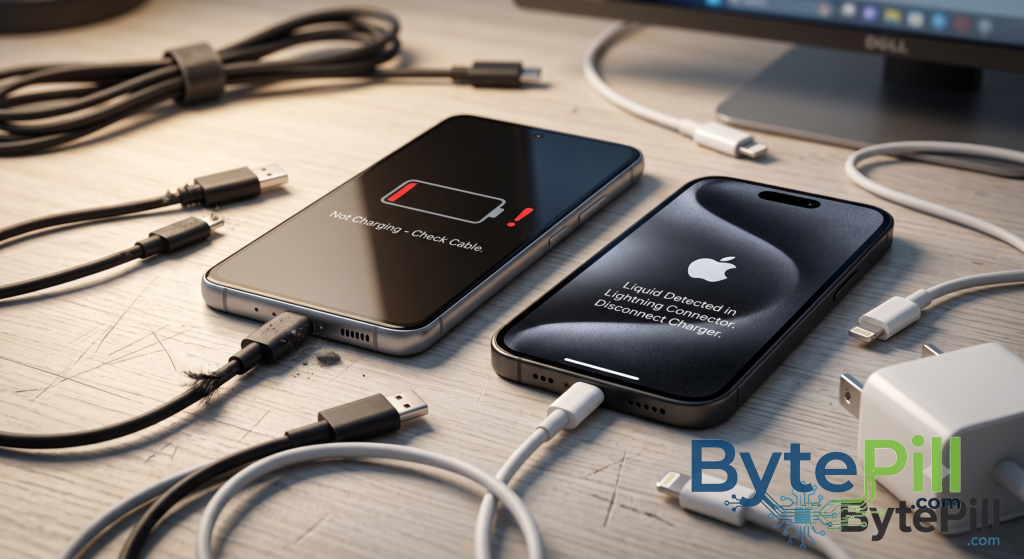
Plugging in your phone and seeing nothing happen is one of those small problems that can become surprisingly stressful. You connect the charger, wait a few minutes, and the battery percentage has not moved at all.
A phone that will not charge does not necessarily have a dead battery. The problem could be as simple as a damaged cable, dirt inside the charging port, an overheated device, a software glitch, or a faulty power adapter.
This guide covers the most common reasons an Android phone or iPhone won’t charge, starting with quick checks and moving toward more advanced troubleshooting.
Quick Checks Before You Start
Before changing system settings or buying replacement parts, try these simple checks:
- Try another wall outlet. The problem may be with the power source rather than the phone.
- Restart the phone. A temporary software problem can sometimes prevent the device from detecting the charger correctly.
- Try another charging cable. A cable can fail internally even when its exterior looks perfectly normal.
- Try another power adapter. This helps determine whether the charger itself is the problem.
- Remove the phone case. Some cases can prevent the connector from sitting properly inside the charging port.
- Let the phone cool down. Charging may slow down or temporarily stop when the device becomes too hot.
If the phone still refuses to charge, continue with the steps below.
1. Check the Charging Cable and Charger
The cable and power adapter are among the first things you should test because they are relatively easy to replace.
Charging cables are repeatedly bent, twisted, pulled, and carried around. Over time, the internal wires or connectors can become damaged even if there are no visible cracks.
Try this:
- Connect your phone using a different cable that you know works.
- Try another compatible wall adapter.
- If possible, test your original cable and adapter with another compatible device.
- Avoid using visibly damaged, frayed, or overheated cables.
- Make sure the charger and cable are compatible with your phone’s charging requirements.
If another cable charges the phone normally, you have probably found the problem.
A useful test
If your phone does not charge with one cable but charges normally with another, replace the cable before assuming the phone itself has a hardware fault.
There is little value in opening a phone when the actual culprit is a cable that has spent six months being folded into a pocket like a tiny electrical accordion.
2. Clean the Charging Port Carefully
Dust, lint, and other debris can accumulate inside a charging port, especially if you regularly keep your phone in a pocket or bag.
When enough debris builds up, the connector may not reach the contacts properly. The result can be:
- The phone does not charge at all.
- Charging starts and stops.
- The cable feels loose.
- Fast charging does not work.
- The phone charges only when the cable is held at a certain angle.
How to inspect the port
Turn off the phone and look inside the charging port using a light.
If you can see compacted dust or lint, remove it carefully using a non-metallic tool designed for cleaning electronics.
Avoid using:
- Needles
- Paper clips
- Metal pins
- Other sharp metal objects
These can damage the contacts inside the port.
Do not force anything deep into the connector. If the debris is compacted or the port appears physically damaged, professional cleaning is safer than trying to dig around inside it.
3. Restart Your Phone
A charging problem can sometimes be caused by a temporary software or power-management glitch.
Start with a normal restart.
After the phone turns back on, connect the charger again and wait a few minutes.
If the phone is completely frozen
You may need to perform a force restart.
The exact button combination differs between Android manufacturers, so check the instructions for your specific model.
For many Android phones, holding the Power button and Volume Down button together for several seconds can trigger a restart, but this is not universal.
For iPhone, the procedure depends on the model.
iPhone 8 and newer
- Press and quickly release Volume Up.
- Press and quickly release Volume Down.
- Press and hold the Side button until the Apple logo appears.
iPhone 7 and 7 Plus
Press and hold the Side button and Volume Down button together until the Apple logo appears.
Older iPhones with a Home button
The force-restart combination varies depending on the model, so use the procedure specific to that device.
A force restart does not normally erase your personal data. It simply forces the device to restart when the normal interface is not responding.
4. Check for Moisture or a Liquid Warning
Modern phones may detect moisture inside the charging port and stop wired charging to protect the device.
You might see a warning such as:
“Liquid Detected” or “Moisture Detected.”
If you see such a warning:
- Disconnect the charging cable.
- Move the phone to a dry, well-ventilated area.
- Allow the port to dry naturally.
- Do not insert objects into the port to speed up the drying process.
- Do not use excessive heat or a hair dryer directly on the connector.
Do not repeatedly connect the charger while the port is wet. Electricity and moisture are not a particularly productive partnership.
If the warning continues after the phone has had enough time to dry, the port may require inspection.
5. Check Whether the Phone Is Too Hot or Too Cold
Extreme temperatures can affect charging.
When a phone becomes unusually hot, its software may reduce charging speed or temporarily stop charging to protect the battery.
This can happen when:
- The phone is being used heavily while charging.
- The device is exposed to direct sunlight.
- A demanding game or application is running.
- The phone is covered by something that traps heat.
- The battery or charging hardware is developing a fault.
What to do
Disconnect the charger and let the phone return to a normal room temperature.
Avoid placing a hot phone in a refrigerator or freezer. Rapid temperature changes can cause condensation and create another problem.
Once the phone has cooled down, connect the charger again and check whether charging resumes normally.
6. Phone Says It’s Charging but the Battery Percentage Does Not Increase
Sometimes the charging icon appears, but the battery percentage barely changes.
This does not always mean the charger is broken.
The phone may be consuming power almost as quickly as it receives it.
For example, heavy gaming, video recording, navigation, mobile hotspot use, or high screen brightness can increase power consumption significantly.
Try this:
- Close demanding applications.
- Reduce screen brightness.
- Turn off unnecessary features temporarily.
- Stop gaming or other heavy tasks.
- Leave the phone connected for 15 to 30 minutes.
If the battery percentage increases normally when the phone is idle, excessive power consumption may have been the reason.
If it remains stuck despite using a known-good charger and cable, continue troubleshooting.
7. Phone Charges Slowly
Slow charging can have several causes.
Common possibilities include:
- A damaged or low-quality cable.
- An incompatible power adapter.
- Dirt inside the charging port.
- High device temperature.
- Heavy phone usage while charging.
- A battery that has degraded over time.
- Fast charging being disabled or unavailable under the current conditions.
Try these steps
Use a compatible charger and cable that support the charging standard required by your device.
Then:
- Stop demanding applications.
- Let the phone cool down.
- Clean the charging port carefully if necessary.
- Try another compatible cable.
- Try another suitable power adapter.
Keep in mind that charging speed can also decrease as the battery gets closer to full. This is normal behavior on many modern phones because the charging system reduces power near the top of the battery range.
8. Phone Stops Charging at 80%
If your phone consistently stops around 80%, do not immediately assume the battery is defective.
Many modern phones include battery-protection features designed to reduce battery aging.
On iPhone
Depending on the model and iOS version, look under:
Settings → Battery → Charging
You may find charging optimization or charge-limit settings there.
On Android
The exact location depends on the manufacturer. Look under:
Settings → Battery
or search Settings for terms such as:
Battery protection, Charging protection, or Charge limit.
If the phone intentionally limits charging to protect battery health, this behavior can usually be changed through the relevant setting.
If charging stops at exactly the same percentage despite those settings being disabled, investigate the charger, software, battery condition, and device temperature.
9. Test Wireless Charging If Your Phone Supports It
Wireless charging can be useful as a diagnostic test.
If your device supports Qi or MagSafe-compatible charging, try a known-good wireless charger.
If wireless charging works but wired charging does not
The problem may be related to:
- The USB-C or Lightning port.
- The charging cable.
- The wired charging circuitry.
- Dirt or physical damage inside the port.
If neither method works
The problem could involve the battery, charging circuitry, software, or another internal component.
Wireless charging is therefore a useful clue, but it cannot identify the exact failed component by itself.
10. Try Safe Mode on Android
If your Android phone charges normally after starting in Safe Mode, a third-party application may be interfering with the device.
Safe Mode temporarily prevents most third-party apps from running.
The exact procedure varies by manufacturer, but a common method is:
- Open the power menu.
- Press and hold Power off.
- Select Safe Mode if the option appears.
- Test charging.
If charging works normally in Safe Mode, think about applications you installed or updated shortly before the problem appeared.
Uninstall suspicious or recently installed apps one at a time and test charging again.
The Safe Mode procedure is different on some Android devices, so use the instructions for your phone model if these steps do not work.
11. Check iPhone Battery Health
If an iPhone is charging very slowly, shutting down unexpectedly, or losing battery capacity quickly, check its battery condition.
Depending on your iOS version, open:
Settings → Battery → Battery Health & Charging
Look for information about Maximum Capacity and any service recommendations displayed by the system.
A significantly degraded battery can cause noticeably shorter battery life and may eventually require replacement.
Do not rely on battery percentage alone to diagnose a battery problem. Charging behavior, unexpected shutdowns, heat, and system warnings are also useful clues.
12. Update Your Phone’s Software
Charging problems can occasionally be related to software bugs.
If the phone still has enough battery to operate safely, check for available system updates.
Android
Open:
Settings → System → Software update
The exact menu can vary between manufacturers.
iPhone
Go to:
Settings → General → Software Update
Install an available update if appropriate.
Do not interrupt a system update or disconnect the device unnecessarily while it is installing.
13. When the Problem Is Probably Hardware
If you have tested multiple working cables and chargers, cleaned the port carefully, restarted the device, checked temperature and software, and the phone still will not charge, a hardware problem becomes more likely.
Possible causes include:
- A damaged charging port.
- A worn-out battery.
- Corrosion caused by liquid exposure.
- Damaged internal charging components.
- A faulty charging circuit.
- Physical damage from a drop or impact.
A phone that only charges when the cable is held at a specific angle is another warning sign of a damaged or worn connector.
At this point, repeatedly forcing the cable into the port is unlikely to help. It can make the damage worse.
A qualified repair technician should inspect the device before replacing expensive components unnecessarily.
When You Should Stop Using the Phone
Some charging problems require more caution.
Stop charging the phone and seek professional assistance if you notice:
- A swollen or bulging battery.
- Smoke or a burning smell.
- Extreme heat during charging.
- Sparks.
- A badly damaged charging port.
- Signs of liquid damage.
- A battery that is physically separating the phone’s screen or back cover.
Do not puncture, squeeze, or attempt to remove a swollen lithium-ion battery yourself.
Battery damage can become a serious safety issue, not just a charging inconvenience.
What If the Phone Still Won’t Charge?
At this point, work through the problem systematically rather than replacing parts at random.
Use this order:
- Try another wall outlet.
- Test a known-good charging cable.
- Test a compatible power adapter.
- Inspect and carefully clean the charging port.
- Restart the phone.
- Check for moisture or excessive heat.
- Test wireless charging if available.
- Check battery and charging settings.
- Update the phone’s software.
- Have the device inspected if none of these steps work.
This process helps separate simple charging-accessory problems from software and hardware faults.
Frequently Asked Questions
Why won’t my phone charge even though the charger works?
The charging cable, phone port, battery, charging circuitry, temperature protection, or software may still be responsible. Test the cable and adapter with another compatible device and inspect the phone’s charging port.
Why does my phone charge only when I move the cable?
This often indicates a loose or damaged connector, debris inside the port, or a damaged cable. Do not keep bending the cable to find a position where it works, as this can make the problem worse.
Can dust stop a phone from charging?
Yes. Compact lint or debris can prevent the charging connector from making proper contact with the port.
Why does my phone charge slowly?
Possible causes include an incompatible charger, damaged cable, high temperature, heavy usage, battery degradation, or charging limitations designed to protect battery health.
Why does my phone stop charging at 80%?
Some phones intentionally limit charging to around 80% through battery-protection features. Check your battery or charging settings before assuming there is a hardware problem.
Is it safe to charge a phone overnight?
Modern phones use charging-management systems designed to control charging when the battery reaches a high state of charge. However, use a good-quality compatible charger, avoid damaged cables, and do not charge the phone under pillows, blankets, or other materials that can trap heat.
Can a software update fix charging problems?
Sometimes. If the problem is caused by a software bug or power-management issue, a system update may resolve it. However, software updates cannot repair a physically damaged port, cable, or battery.
Final Thoughts
A phone that will not charge does not automatically mean that the battery has failed.
Start with the simplest possibilities: test the cable and charger, inspect the charging port, restart the device, and check whether heat or moisture is affecting charging. If your phone supports wireless charging, use it as an additional diagnostic test.
For Android and iPhone users alike, the most important thing is to avoid jumping straight to an expensive repair before identifying where the problem actually occurs.
If the phone shows signs of battery swelling, liquid damage, burning, extreme heat, or physical damage, stop charging it and have it inspected by a qualified technician.
A few careful checks can often identify the problem without replacing a perfectly good phone or battery.