eSIM Stuck on “Activating”? Try These Fixes Before Calling Your Carrier
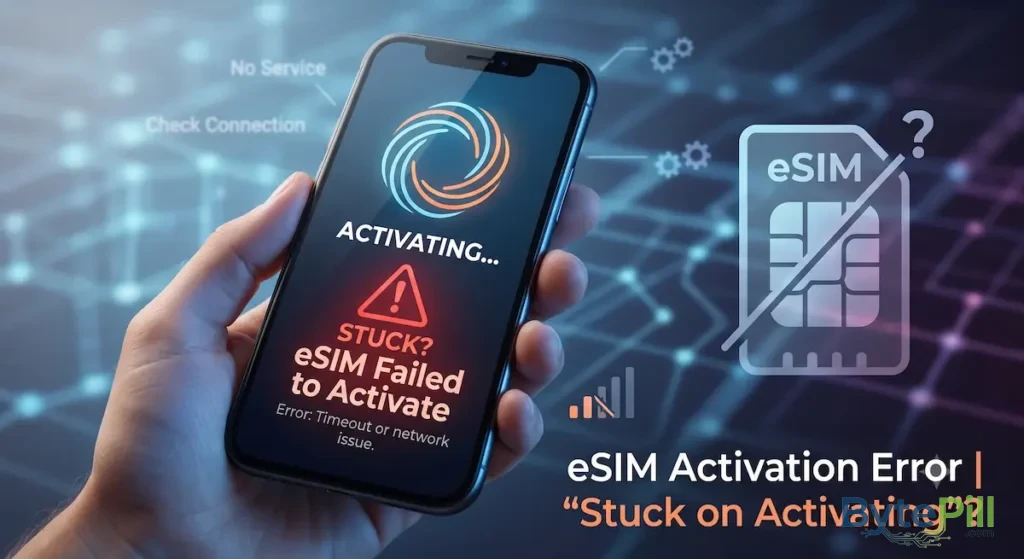
Trying to transfer an eSIM to a new phone should normally take only a few minutes. But sometimes the process gets stuck on “Activating”, “Activating…”, or a similar status without completing.
This can happen when switching to a new iPhone or Android phone, transferring a number between devices, or installing a new eSIM from a carrier.
The good news is that an eSIM stuck during activation does not necessarily mean the eSIM is damaged. The problem can be caused by a weak internet connection, a temporary software issue, carrier-side activation problems, or an eSIM transfer that has not been completed correctly.
This guide covers the safest troubleshooting steps for iPhone and Android, starting with simple fixes and moving to carrier-specific solutions.
Important: Do not delete an eSIM that is currently working unless your carrier has specifically instructed you to do so. Removing an eSIM can require a new activation process or QR code.
Before You Start: Check These Things First
Before changing network settings or removing anything, check the basics.
Make sure you have a stable Wi-Fi connection
eSIM activation usually requires an internet connection so the device can communicate with the carrier and download the cellular profile.
If possible:
- Connect to a reliable private Wi-Fi network.
- Avoid public Wi-Fi networks that require browser-based sign-ins.
- Move closer to your router if the signal is weak.
- Try another trusted Wi-Fi network if the current one is unstable.
Keep the phone connected to power
If the activation process is taking a while, connect your phone to a charger. This prevents the device from shutting down during the setup process.
Check whether your old SIM still works
If you are transferring a number from another phone, check the old device.
If the old SIM or eSIM still has cellular service, do not immediately delete it. The transfer may not have completed yet.
Make sure the phone is unlocked
If you are using a phone purchased from another carrier, check whether it is carrier-unlocked.
On iPhone, go to:
Settings → General → About → Carrier Lock
If it says “No SIM restrictions”, the iPhone is unlocked.
On Android, the location of carrier-lock information varies by manufacturer and software version.
Quick Navigation
How to Fix an eSIM Stuck on “Activating” on iPhone
If your iPhone remains on an activation screen, work through these steps in order.
1. Check Your Wi-Fi Connection
Start with the simplest possibility.
Go to:
Settings → Wi-Fi
Make sure Wi-Fi is enabled and connected to a stable network.
If the connection seems unreliable, try another Wi-Fi network and attempt the activation again.
Avoid repeatedly restarting the activation process if the carrier is already processing the request.
2. Turn Airplane Mode On and Off
Airplane Mode can refresh the phone’s wireless connections and sometimes clears a temporary communication problem.
- Open Control Center.
- Turn Airplane Mode on.
- Wait about 30 seconds.
- Turn Airplane Mode off.
- Wait a few moments and check the eSIM status again.
This is a quick step, so it is worth trying before resetting anything.
3. Restart the iPhone
A normal restart can clear temporary iOS problems affecting network services.
After restarting:
- Connect to Wi-Fi.
- Keep the phone connected to power.
- Check the cellular settings again.
- Give the activation process a few minutes to complete.
If the iPhone is completely unresponsive, you can perform a force restart.
Force restart iPhone 8 or later
- Quickly press and release Volume Up.
- Quickly press and release Volume Down.
- Press and hold the Side button.
- Release it when the Apple logo appears.
The procedure is different on older iPhone models.
4. Check the eSIM in Cellular Settings
If the eSIM profile appears in your settings, check its status before deleting anything.
Go to:
Settings → Cellular
Look for the newly added cellular plan.
If it appears but shows Activating, No Service, or another status, leave it installed while you troubleshoot.
If the carrier has already created the profile, deleting it may require the carrier to issue a new activation method.
5. Check for an iOS Update
An outdated version of iOS can sometimes cause compatibility or network problems.
Go to:
Settings → General → Software Update
If an update is available, install it when practical and then try the activation again.
Do not interrupt an iOS update once it has started.
6. Reset Network Settings
If the activation problem appears to be related to the phone’s network configuration, resetting network settings can help.
Go to:
Settings → General → Transfer or Reset iPhone → Reset → Reset Network Settings
This does not erase your photos, apps, or personal files.
However, it does remove network-related information such as:
- Saved Wi-Fi passwords
- Previously used Wi-Fi networks
- VPN and network configuration
- Some cellular and Bluetooth-related settings
Make sure you know your Wi-Fi password before performing the reset.
How to Fix an eSIM Stuck on “Activating” on Android
Android manufacturers use different interfaces, so the exact menu names can vary between Samsung Galaxy, Google Pixel, Xiaomi, and other devices.
The following steps cover the most common situations.
1. Restart the Phone
Start with a normal restart.
After the phone boots:
- Connect to a stable Wi-Fi network.
- Keep the phone connected to power.
- Open the SIM or Mobile Network settings.
- Check whether the eSIM activation has completed.
If it is still stuck, continue below.
2. Toggle Airplane Mode
Turn Airplane Mode on for around 30 seconds, then turn it off.
This forces the phone to restart its wireless connections and can resolve temporary network registration problems.
3. Check the SIM Manager
On many Samsung Galaxy phones, eSIM settings can be found under:
Settings → Connections → SIM manager
On other Android devices, look under:
Settings → Network & Internet → SIMs
The exact location depends on the manufacturer and Android version.
Check whether the eSIM appears in the list and whether it is enabled.
4. Check for System Updates
An outdated Android version or carrier configuration can sometimes interfere with cellular activation.
Check:
Settings → Software update
or, depending on the device:
Settings → System → System update
Install available updates and restart the phone.
5. Reset Network Settings
If the phone’s network configuration is corrupted, resetting it may help.
On Samsung Galaxy devices, the option is generally found under:
Settings → General management → Reset → Reset network settings
On other Android phones, search Settings for:
Reset network settings
This can remove saved Wi-Fi networks, Bluetooth connections, and other network configuration data.
It does not normally erase your personal photos, apps, or documents.
6. Be Careful With SIM Manager Data
Some Android troubleshooting guides recommend clearing data for system apps such as SIM Manager.
This should not be your first step.
The exact behavior of SIM Manager differs between Android manufacturers and software versions. Clearing system-app data can potentially remove configuration information or make the activation process more complicated.
If your eSIM is already installed or partially activated, contact your carrier before deleting the eSIM profile or clearing important SIM-related data.
Should You Delete the eSIM and Scan the QR Code Again?
Not immediately.
This is one of the most important points when troubleshooting eSIM activation.
If the eSIM profile is stuck during activation, deleting it may not solve the underlying problem.
Depending on the carrier, the QR code may:
- Work only once.
- Expire after a certain period.
- Become invalid after the profile is downloaded.
- Require the carrier to issue a replacement eSIM.
Before deleting an eSIM, check your carrier’s instructions or contact support.
If the carrier confirms that you should remove the profile and reinstall it, follow their activation procedure exactly.
You may need a new QR code, activation code, or carrier-generated eSIM profile.
Check Whether the Problem Is Your Carrier
Sometimes the phone is working perfectly and the activation request is simply not completing on the carrier’s side.
This can happen because of:
- Carrier server maintenance
- Temporary service outages
- High activation traffic
- An incomplete number transfer
- A pending SIM replacement
- Incorrect account information
- A carrier-side security check
- An eSIM profile that has already been used
- A problem linking the eSIM to the device’s EID
If you have tried the basic troubleshooting steps and the eSIM still will not activate, checking the carrier’s status or contacting support may save you a lot of unnecessary resetting.
What Information Will Your Carrier Need?
When contacting your carrier, have the following information ready:
- Your phone number
- Account or customer information
- Phone model
- IMEI
- EID
- The eSIM activation or QR code information, if applicable
- The exact message displayed on the phone
- Whether the old SIM still works
The EID is especially important because it identifies the device’s eSIM hardware.
On many phones, you can find it in the device’s About section.
On iPhone
Go to:
Settings → General → About
Then look for EID.
On Android
The location varies by manufacturer, but you can usually find it under:
Settings → About phone
You can also search Settings for EID.
Do not publicly share your EID, IMEI, activation codes, or QR code.
eSIM Shows “No Service” After Activation
An eSIM can sometimes finish activating but still show No Service.
That is a slightly different problem.
If activation appears complete, check:
1. Make sure the line is enabled
On iPhone:
Settings → Cellular
On Android:
Settings → SIM manager or Mobile Network
Make sure the newly activated line is turned on.
2. Check network selection
If automatic network selection is available, keep it enabled unless your carrier tells you otherwise.
3. Restart the phone
A restart can force the device to register with the cellular network after the eSIM profile has been installed.
4. Check your carrier account
The eSIM can be installed correctly while the number itself is still inactive on the carrier’s system.
In that situation, only the carrier may be able to complete the activation.
eSIM Transfer vs. eSIM Activation: What’s the Difference?
These terms are sometimes used interchangeably, but they are not exactly the same.
eSIM installation means downloading the cellular profile onto your device.
eSIM activation means the carrier enables that profile so the device can use its mobile network.
eSIM transfer usually means moving an existing cellular plan from one device to another.
This distinction matters because the phone can successfully download an eSIM profile while the carrier-side activation or transfer is still incomplete.
That is why repeatedly deleting and reinstalling the profile is not always the right solution.
When Should You Contact Your Carrier?
Contact your carrier if:
- The eSIM remains stuck on Activating after the basic troubleshooting steps.
- The old SIM stopped working but the new eSIM is not active.
- You deleted the eSIM and the QR code no longer works.
- The phone shows No Service after activation.
- The carrier says the transfer is pending.
- Your number transfer has not completed.
- You receive an activation error that you cannot resolve.
- The carrier needs your device’s EID to complete activation.
If the problem is caused by the carrier’s activation system, changing DNS servers, resetting the phone repeatedly, or reinstalling the eSIM will not magically repair their backend. Technology remains disappointingly resistant to motivational speeches.
Quick Fix Checklist
If your eSIM is stuck on Activating, follow this order:
- Connect to a reliable Wi-Fi network.
- Keep the phone connected to power.
- Check whether the old SIM still works.
- Turn Airplane Mode on for 30 seconds, then off.
- Restart the phone.
- Check the eSIM or SIM Manager settings.
- Install available iOS or Android updates.
- Reset network settings if necessary.
- Do not delete the eSIM unless your carrier recommends it.
- Contact your carrier if activation still does not complete.
Frequently Asked Questions
How long does eSIM activation take?
There is no universal activation time. Some eSIMs activate within minutes, while carrier transfers or number migrations can take longer.
If the status remains unchanged for an unusually long time, check with your carrier rather than repeatedly reinstalling the eSIM.
Can I activate an eSIM without Wi-Fi?
It depends on the carrier and activation method. Many eSIM installation and transfer processes require an internet connection, so a reliable Wi-Fi connection is recommended.
Will restarting my phone delete the eSIM?
No. A normal restart does not normally remove an installed eSIM profile.
Should I delete my eSIM if it is stuck on Activating?
Usually, no, not as a first step.
Removing the profile can make the situation more complicated if the carrier requires a new QR code or activation profile.
Why does my eSIM say “No Service” after activation?
The profile may be installed, but the line may not yet be registered correctly with the carrier. Check that the line is enabled, restart the phone, and contact your carrier if service does not return.
Can I use the same eSIM QR code again?
That depends entirely on the carrier. Some QR codes can be reused, while others are single-use or become invalid after activation.
Check with your carrier before deleting the existing eSIM.
Does resetting network settings delete my eSIM?
On most modern phones, a standard network settings reset does not remove the eSIM profile. However, menu behavior can vary by device and software version.
Always read the confirmation screen carefully before approving a reset.
Final Thoughts
An eSIM stuck on “Activating” can look like a serious phone problem, but it is often caused by a temporary connection issue, a software glitch, or an activation request that has not completed on the carrier’s side.
Start with the simple fixes: use a reliable Wi-Fi connection, toggle Airplane Mode, restart the phone, and check the cellular settings.
If those steps do not work, resetting network settings can be worth trying. However, do not rush to delete the eSIM. Removing an active or partially installed profile can turn a simple activation problem into a situation where you need a new QR code or carrier assistance.
If the eSIM still will not activate, your carrier is usually the best place to investigate the problem. Give them your phone number, device model, and EID so they can check the activation status on their side.
BytePill recommends following your carrier’s official eSIM instructions whenever an activation involves deleting a profile, transferring a phone number, or requesting a replacement eSIM.