How to Fix Google Play Services Won’t Install or Show on Chinese ROM Phones
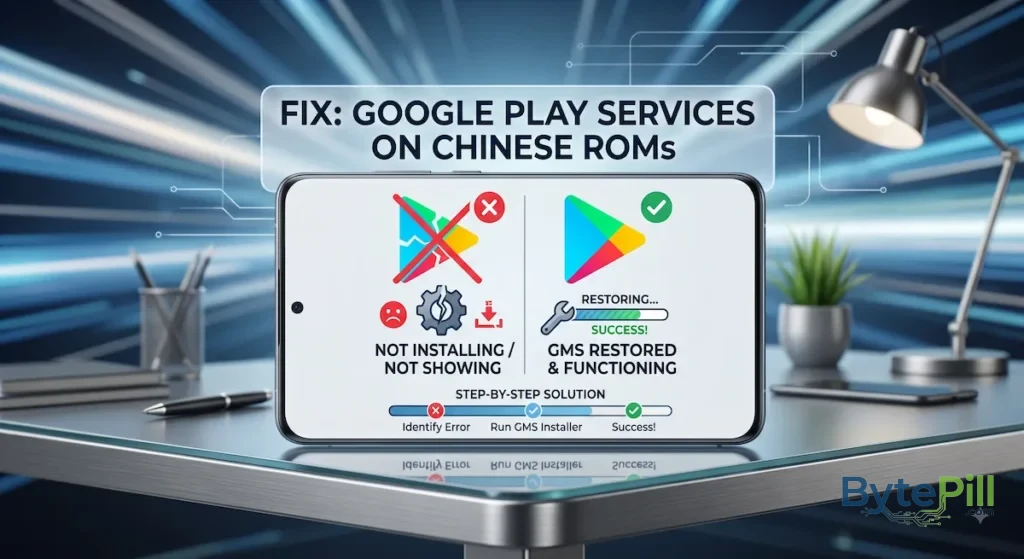
Buying a phone designed for the Chinese market can give you excellent hardware for less money, but the software can create a frustrating problem: Google Play Services may be missing, impossible to install normally, or difficult to find in the app settings.
This is common on some Chinese-market versions of Xiaomi, Redmi, Vivo, OPPO, Honor, Huawei, and other devices. However, the exact situation depends on the phone model, Android version, and ROM. Not every Chinese ROM handles Google services the same way.
If you installed Google Play Services manually and received “App not installed,” or the service appears to be installed but you cannot find it in your app list, don’t immediately assume the APK is broken.
Google Play Services is part of a larger Google Mobile Services (GMS) environment, and simply installing one APK is often not enough.
This guide explains how to determine what is missing and the safest ways to get Google services working on a supported Chinese ROM.
Why Google Play Services Won’t Install on Some Chinese ROMs
Google Play Services is not just an ordinary application that you download and launch like a game.
It works together with components such as:
- Google Play Store
- Google Services Framework
- Google Account Manager
- Google Play Services
- Google Login and authentication components
The exact components and system integration depend on the device and Android version.
A Chinese-market ROM may have Google components disabled, omitted, restricted, or unsupported. In other cases, the phone already contains some Google framework components but does not expose them until the appropriate setting is enabled.
There is another important detail:
Installing a random Google Play Services APK does not automatically install or enable the complete Google Mobile Services environment.
That is why manually downloading an APK can result in an installation error or a Play Store that opens but does not work correctly.
First: Check Whether Your Phone Already Supports Google Services
Before installing anything, check whether your ROM already contains a Google services option.
Depending on the manufacturer and ROM version, look through Settings for terms such as:
- Basic Google Services
- Google Mobile Services
- Google Services
- Google Account
- Google Play Services
The location and name can change after a system update, so don’t assume another phone using the same brand will have the same menu.
If you find a Google services switch, enable it and restart the phone before installing additional software.
This is usually preferable to installing third-party packages manually.
1. Enable Basic Google Services
On some Chinese Xiaomi, Redmi, and other compatible ROMs, Google support can be enabled through a built-in setting.
Depending on the ROM, try:
Settings → Accounts & sync → Basic Google Services
If the option exists:
- Open Settings.
- Find Accounts & sync or a similarly named section.
- Look for Basic Google Services.
- Enable it.
- Restart the phone.
- Open the device’s official app store.
- Check whether Google Play Store or Google-related components are available.
The exact menu can differ considerably between MIUI, HyperOS, OriginOS, ColorOS, and other Chinese ROMs.
Don’t Have the Option?
That’s important information.
It may mean your particular ROM does not expose the feature, the option is located elsewhere, or the device does not provide built-in GMS support.
Don’t keep searching random Settings menus forever. Android manufacturers have apparently decided that consistency is an optional feature.
Move to the compatibility checks below before installing third-party APKs.
2. Check Whether Google Play Services Is Already Installed
If you believe Google Play Services installed successfully but cannot find it, don’t immediately reinstall it.
Google Play Services is primarily a background system component, not a normal app that you open from the home screen.
On many Android phones, it may therefore be hidden from the normal app list or displayed only when system apps are enabled.
Try:
Settings → Apps → Manage apps
Then look for an option such as:
- Show system apps
- Show all apps
- System app settings
- Display system processes
Search for:
Google Play Services
You may also find:
Google Services Framework
and:
Google Play Store
If Google Play Services appears, check whether it is:
- Enabled
- Allowed to run
- Not restricted by battery optimization
- Properly updated
If it is already present, installing another APK over it may actually create more problems.
3. Check Google Play Store Separately
A common mistake is to focus entirely on Google Play Services while the actual problem is that the Play Store or Google account framework is missing or disabled.
Check your installed apps for:
Google Play Store
If it exists, open it and see whether it can connect normally.
If Play Store opens but displays errors such as:
- “Device isn’t Play Protect certified”
- “Something went wrong”
- “Can’t sign in”
- Apps refusing to download
then the problem may be broader than a missing Play Services APK.
4. Check Play Protect Certification
This is an important check that many troubleshooting guides completely ignore.
Open the Google Play Store and go to:
Profile picture → Settings → About
Look for:
Play Protect certification
Ideally, the device should show:
Device is certified
If it says:
Device is not certified
Google services may not behave normally even if Play Store and Play Services are installed.
This can happen with certain modified, unofficial, or region-specific ROM configurations.
If your device is not certified, installing another copy of Google Play Services is unlikely to be the real solution.
5. Make Sure Google Play Services Isn’t Disabled
If Google Play Services appears in the app list, open its information page.
Check whether you have an option such as:
Enable
If you see Enable, the service is currently disabled.
Tap it and restart the phone.
If it is already enabled, check its permissions and battery settings.
Be careful with aggressive battery-management features on Chinese ROMs. Some manufacturers are particularly aggressive about stopping background applications.
6. Remove Battery Restrictions
Even after successfully installing Google services, a Chinese ROM may prevent Google Play Services from running correctly in the background.
Look under:
Settings → Apps → Google Play Services → Battery
The exact options vary by manufacturer.
If available, avoid overly restrictive settings such as:
- Restricted background activity
- Aggressive battery optimization
- Automatic app termination
You may also need to check similar settings for:
Google Play Store
and:
Google Services Framework
Some ROMs also have separate Auto-start or Background activity controls.
If Google services works immediately after installation but stops working after the phone has been idle, battery management is particularly worth checking.
7. Set the Correct Date and Time
Incorrect date or time settings can interfere with secure connections, Google account authentication, and certificate validation.
Go to:
Settings → System → Date & time
or the equivalent menu on your device.
Enable:
- Set time automatically
- Set time zone automatically
if those options are available.
Then restart the phone and try Google Play again.
It’s a tiny setting, but computers have been defeated by clocks since approximately the dawn of civilization.
8. Check Your Internet Connection
Before changing system files or installing more APKs, verify that the phone actually has a stable connection.
Try:
- Opening several websites.
- Switching between Wi-Fi and mobile data.
- Restarting the router.
- Temporarily disabling a VPN.
- Checking whether Google services work on another network.
If Play Store works on mobile data but not Wi-Fi, the issue may be related to the network, DNS, filtering, or VPN configuration rather than Google Play Services itself.
9. Clear Google Play Services and Play Store Cache
If Google components are already installed but behaving strangely, clearing temporary data can help.
For Google Play Services:
Settings → Apps → Google Play Services → Storage → Clear cache
Then do the same for:
Google Play Store
After clearing the cache, restart the phone and test again.
Don’t Immediately Clear Everything
Some Android versions provide Clear storage or Clear data.
That is more aggressive and can reset application-related information.
Start with Clear cache.
If you eventually clear Google Play Services data, you may need to sign in again or allow some services to rebuild their local data.
10. Update Google Play Services and the Play Store
If the Google framework is already supported by your ROM, an outdated component may be responsible for the problem.
Check for updates through the official Google Play Store where available.
Avoid downloading random “latest Google Play Services” APKs from unknown websites simply because a search result claims that they are the newest version.
Google Play Services has different builds for different:
- Android versions
- CPU architectures
- Screen configurations
- Device configurations
Installing the wrong package can cause installation failures or instability.
11. If You Get “App Not Installed”
If you manually install a Google Play Services APK and Android displays:
App not installed
don’t assume that downloading another APK at random will fix it.
Possible causes include:
- The package is incompatible with your Android version.
- The APK architecture does not match the device.
- A different version is already installed.
- The ROM does not support that Google component.
- The package is intended to update a system component rather than install as a normal application.
- Required Google framework components are missing.
- The ROM restricts installation of the package.
The first thing to determine is whether Google Play Services is already installed.
If it is, reinstalling another version may be the wrong approach.
12. Use an Official or Trusted GMS Installation Method
If your Chinese ROM supports Google services but does not include them by default, use the manufacturer’s built-in mechanism when available.
If the ROM provides no official method, some users rely on third-party GMS installation tools.
However, this is where you need to be careful.
Avoid downloading an installer simply because a random website labels it:
Google Installer V4
or:
Google Play Services Fix
Third-party installers can vary in safety, compatibility, and reliability.
Before using one, verify that:
- The source is trustworthy.
- The installer matches your device and Android version.
- You understand what permissions it requests.
- It does not ask you to disable important security features unnecessarily.
- You have a backup of important data.
The goal is to install Google services, not accidentally install an entirely unrelated collection of problems.
13. Huawei Phones Are Different
Huawei devices require special attention.
On many newer Huawei phones, traditional GMS installation is not officially supported in the same way as on some Xiaomi, Redmi, OPPO, or Vivo Chinese ROMs.
This means a method that works on a Xiaomi Chinese ROM may fail completely on a Huawei device.
Apps such as GBox or GSpace can provide a virtualized environment in which certain Google-dependent applications can operate.
However, these solutions have limitations.
They may not provide the same experience as native GMS integration, and some applications that depend heavily on Google services, notifications, location APIs, Play Integrity, or device certification may behave differently.
If you need Google services for banking, payments, games, or other security-sensitive applications, check compatibility before relying on a virtual environment.
14. Don’t Confuse Chinese ROM With a Global ROM
Before changing the ROM, verify exactly what your phone is running.
Check:
Settings → About phone
Look for:
- Model number
- ROM version
- Android version
- Region
- Build number
A phone purchased in another country can sometimes have a modified or unofficial ROM installed by the seller.
If the software is unofficial, problems with Google services may be caused by the ROM itself rather than the hardware.
15. Consider Installing an Official Global ROM
If your exact phone model has an official global ROM, switching to it can sometimes provide a cleaner long-term solution.
A global ROM may include Google Mobile Services and Google Play Store officially, depending on the model and region.
However, this is not a universal solution.
Before flashing anything:
- Verify the exact model number.
- Confirm that the ROM is officially compatible.
- Back up important data.
- Understand whether the bootloader must be unlocked.
- Check whether unlocking will erase the phone.
- Follow the manufacturer’s official instructions where possible.
Never flash a ROM simply because the model name looks similar.
Different regional variants can have different hardware, firmware, and bootloader requirements.
16. When You Should Stop Trying APKs
If you have already installed several versions of Google Play Services and nothing works, stop installing more APKs.
At that point, the problem is probably not simply a missing APK.
Look at the bigger picture:
Does the ROM support GMS?
Is Google Play Services already installed?
Is the device Play Protect certified?
Is Google Play Services disabled or restricted?
Is the ROM official?
Does the specific phone model support the Google framework?
Answering these questions will usually tell you more than installing the tenth APK from a website with a suspicious download button.
Quick Troubleshooting Checklist
If Google Play Services won’t install or doesn’t appear on a Chinese ROM, follow this order:
- Check the exact phone model and ROM version.
- Look for a built-in Basic Google Services option.
- Enable it if available.
- Restart the phone.
- Check whether Google Play Services is already installed.
- Enable system apps in the App Manager if necessary.
- Check whether Google Play Services is disabled.
- Check Google Play Store separately.
- Check Play Protect certification.
- Remove aggressive battery restrictions.
- Check date, time, and Internet connectivity.
- Clear the Google Play Services and Play Store cache.
- Update Google components through trusted sources.
- If the ROM genuinely lacks GMS support, investigate a compatible installation method.
- For Huawei devices, check whether a virtualized solution is appropriate.
- If an official global ROM exists for your exact model, consider it as a longer-term solution.
Frequently Asked Questions
Why won’t Google Play Services install on my Chinese phone?
The ROM may not include the required Google framework, the package may be incompatible with your Android version, or Google services may already be installed as a system component.
Why can’t I find Google Play Services in my apps?
Google Play Services is primarily a background system component and may be hidden from the normal app list. Enable Show system apps or a similar option in your App Manager.
Can I install Google Play Services using an APK?
Sometimes, but installing the Play Services APK alone may not be enough. The device may require other Google components and proper system integration.
Does every Chinese ROM support Google Play Services?
No. Support varies by manufacturer, model, Android version, and ROM.
Why does Google Play Store open but apps won’t download?
Possible causes include incomplete GMS installation, Play Protect certification issues, network problems, incorrect date and time, or restrictions imposed by the ROM.
Why does Google Play Services keep stopping?
Common possibilities include an incompatible installation, corrupted app data, aggressive battery restrictions, outdated components, or an unsupported ROM configuration.
Can I use Google apps on a Huawei phone without GMS?
Some solutions can provide access to certain Google-dependent apps through virtualization or alternative environments, but this does not necessarily provide the same functionality as native GMS.
Should I install a Global ROM?
If your exact device officially supports a global ROM, it can be a cleaner long-term solution. However, flashing firmware carries risks and should only be done after confirming exact model compatibility and following reliable instructions.
Final Thoughts
When Google Play Services won’t install or show up on a Chinese ROM, the problem is rarely solved by simply downloading another APK.
First determine whether your phone already has Google services hidden or disabled. Check for Basic Google Services, show system apps in the App Manager, verify Play Protect certification, and remove battery restrictions that may interfere with Google components.
If your ROM does not include GMS, the correct solution depends heavily on the exact device and software. Some Xiaomi, Redmi, Vivo, and OPPO devices may offer built-in ways to enable Google services, while Huawei and other heavily restricted devices can require different approaches.
Most importantly, don’t treat every Chinese ROM as identical. The same method can work perfectly on one phone and fail completely on another.
The safest troubleshooting path is to identify your exact model, ROM, Android version, and existing Google components first. Once those are known, you can choose the appropriate solution instead of repeatedly installing APKs and hoping Android eventually gives up.