How to Fix Android Auto Keeps Disconnecting
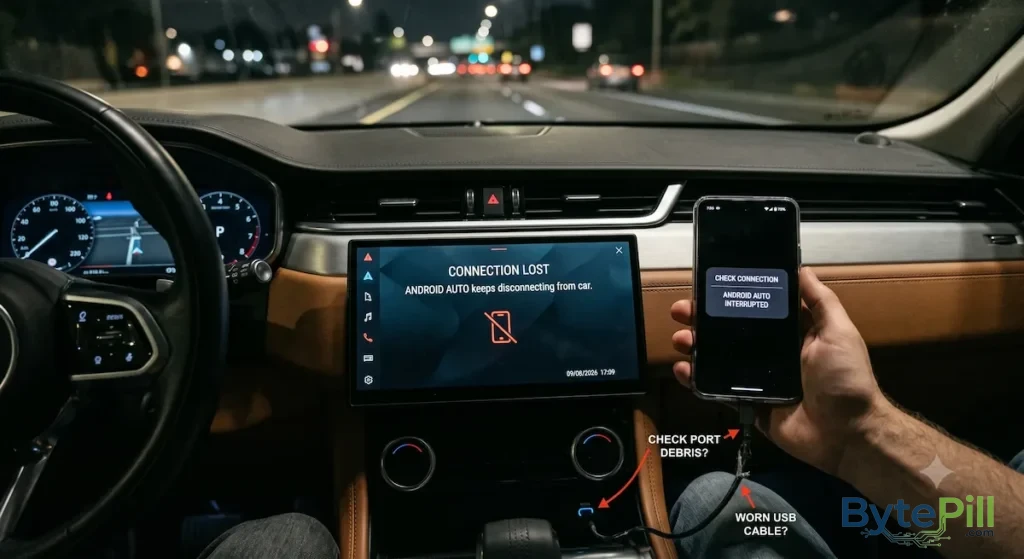
Android Auto can be frustrating when it keeps disconnecting in the middle of a trip. One moment everything is working normally, and the next, the car screen loses the connection and Android Auto disappears.
The good news is that repeated Android Auto disconnections are often caused by something relatively simple, such as a damaged USB cable, a dirty phone port, battery restrictions, outdated software, or a problem with the wireless connection.
The best way to fix it is to first determine whether the problem happens with wired Android Auto, wireless Android Auto, or both. Then work through the solutions below, starting with the easiest ones.
Quick Checks Before Trying Anything Else
Before changing system settings, try these quick checks:
- Restart your phone and the car’s infotainment system.
- If you’re using wired Android Auto, try another good-quality USB data cable.
- If you’re using wireless Android Auto, turn Bluetooth and Wi-Fi off and back on.
- Make sure your phone has enough free storage.
- Check whether Android and your phone’s system software are up to date.
- If possible, test another compatible phone with the same car.
That last test can be particularly useful.
If another phone works normally in the same car, the problem is more likely related to your original phone or its settings. If multiple phones disconnect from the car, the vehicle’s infotainment system, USB port, or wireless connection may be the problem.
1. Replace the USB Cable
If you use wired Android Auto, start with the USB cable.
A cable can still charge your phone normally while having problems with data transfer. Android Auto needs a reliable data connection, so a cable that looks perfectly fine may still cause repeated disconnections.
Try a different cable that:
- Supports data transfer, not charging only.
- Is in good physical condition.
- Fits firmly into both the phone and vehicle USB port.
- Is reasonably short rather than unnecessarily long.
You don’t need to buy the most expensive cable available. A reliable, good-quality data cable is more important than branding or extreme charging specifications.
Test the Cable Before Changing Other Settings
Connect your phone to the car using another known-working cable.
If Android Auto suddenly becomes stable, you’ve probably found the cause.
If the problem continues with multiple cables, move on to the next step.
2. Check Your Phone’s USB Port
Dust and pocket lint can accumulate inside a phone’s USB-C port. This can prevent the connector from sitting properly and may cause the connection to drop when the cable moves.
Turn off your phone and inspect the port using a light.
If you can see debris:
- Disconnect the phone from the car.
- Carefully remove visible lint using a non-metallic tool.
- Do not force anything deep into the port.
- Avoid metal needles, pins, or other conductive objects.
- Reconnect the cable and test Android Auto again.
If the cable feels unusually loose or disconnects when the phone moves slightly, the port itself may be worn or damaged.
3. Restart Your Phone and Car System
A simple restart can clear temporary communication problems between Android and the vehicle’s infotainment system.
Restart your Android phone normally.
Then restart the car’s infotainment system if your vehicle provides a proper restart option. In some vehicles, turning the car off and allowing the infotainment system to shut down completely may be enough.
After both devices restart, connect Android Auto again.
If the problem started suddenly after Android Auto had been working normally for weeks or months, this is particularly worth trying before changing more complicated settings.
4. Check Battery Settings for Android Auto
Some Android phones restrict background activity to reduce battery consumption.
Depending on the manufacturer and Android version, the relevant setting may be called Battery optimization, Background usage limits, Battery, or something similar.
Try this:
- Open Settings.
- Go to Apps.
- Find Android Auto.
- Open Battery or App battery usage.
- Check whether Android Auto is being restricted in the background.
If your phone offers an Unrestricted option and Android Auto is currently heavily restricted, allowing normal background activity may help.
Also, if you have a problem with your battery or charging, visit: Phone Not Charging? Here’s How to Fix It.
Important
The exact menu can be different on Samsung Galaxy, Google Pixel, Xiaomi, OnePlus, and other Android phones.
Don’t worry if your settings don’t look exactly like the steps above. Search your Settings app for Android Auto or battery optimization and check the available options.
5. Clear Android Auto’s Cache
Temporary app data can occasionally become corrupted and cause unexpected behavior.
To clear the cache:
- Open Settings.
- Go to Apps.
- Select Android Auto.
- Open Storage or Storage & cache.
- Tap Clear cache.
Then reconnect your phone to the vehicle.
Should You Clear Android Auto Data?
If clearing the cache doesn’t help, some Android versions also provide a Clear storage or Clear data option.
This is more aggressive because it can remove locally stored app data and reset certain settings. It may require you to configure the connection again.
For that reason, clear the cache first rather than immediately wiping the app’s data.
6. Update Android and Android Auto
Compatibility problems can sometimes appear after an update to your phone, Android Auto, or the vehicle’s infotainment system.
Check for updates in:
Settings → System → Software update
The exact wording varies between manufacturers.
Then open the Google Play Store and check for available updates for Google apps and Android Auto where applicable.
If your car manufacturer provides firmware updates for its infotainment system, check the manufacturer’s official support information as well.
A phone update and a car infotainment update don’t necessarily happen at the same time, so keeping both sides reasonably current can prevent compatibility problems.
7. If Wireless Android Auto Keeps Disconnecting
Wireless Android Auto introduces another layer of connectivity compared with a wired USB connection.
It generally relies on Bluetooth for the initial connection and Wi-Fi for the Android Auto wireless connection, so problems with either side can affect the experience.
Try these steps.
Reconnect Bluetooth and Wi-Fi
Turn Bluetooth and Wi-Fi off on your phone.
Wait several seconds, then turn both back on.
Try connecting to the car again.
Forget the Car and Pair It Again
If the connection continues dropping, remove the existing Bluetooth pairing from your phone and the vehicle if the car allows it.
On your phone:
Settings → Connected devices → Bluetooth
Select your vehicle and choose the option to forget or remove it.
The exact menu will vary by Android manufacturer.
Then pair the phone with the car again and set up Android Auto.
This gives the phone and vehicle a clean connection instead of continuing to rely on an old pairing that may have become problematic.
8. Reset Network Settings
If wireless Android Auto continues disconnecting, resetting network settings can help when the problem is related to corrupted or conflicting network configuration.
The option is usually found somewhere around:
Settings → System → Reset options → Reset Wi-Fi, mobile & Bluetooth
On Samsung devices, it may appear under:
Settings → General management → Reset → Reset Wi-Fi and Bluetooth settings
The wording varies by Android version and manufacturer.
Before You Do This
A network reset can remove saved Wi-Fi networks and Bluetooth pairings.
You will therefore need to reconnect to your Wi-Fi networks and pair Bluetooth devices again.
If you don’t want to do that yet, try the other troubleshooting steps first.
9. Check Whether the Problem Is the Phone or the Car
This is one of the most useful troubleshooting tests and is often overlooked.
If possible, connect another compatible Android phone to the same vehicle.
If the second phone works normally
The problem is more likely related to:
- Your original phone.
- Android Auto settings.
- Bluetooth or Wi-Fi configuration.
- The USB port or cable you are using.
- Software on your phone.
If the second phone also disconnects
The problem may be related to:
- The vehicle’s infotainment system.
- The car’s USB port.
- Wireless connectivity in the vehicle.
- Vehicle firmware.
- Compatibility between the car and Android Auto.
This simple test can save you from resetting half your phone before discovering that the car was the actual problem.
10. Try Wired Android Auto If Wireless Keeps Failing
If your car supports both wired and wireless Android Auto, use the wired connection as a diagnostic test.
Connect the phone with a known-good USB data cable.
If wired Android Auto remains stable while wireless Android Auto repeatedly disconnects, the problem is probably related to the wireless connection rather than the Android Auto service itself.
This helps narrow down the problem considerably.
11. Try Wireless Android Auto If Wired Keeps Failing
The same idea works in reverse.
If wired Android Auto repeatedly disconnects but wireless Android Auto works normally, the likely problem is closer to the physical USB connection.
That could include:
- A faulty USB cable.
- Dirt inside the phone’s USB port.
- A loose phone connector.
- A damaged vehicle USB port.
- A problem with the car’s USB interface.
Testing both connection methods is often more useful than immediately performing a factory reset.
12. Check Android Auto and Vehicle Compatibility
Not every Android phone and vehicle combination behaves identically.
If the problem started after changing phones, upgrading Android, or buying a different vehicle, check whether your particular combination is supported.
You should also check the vehicle manufacturer’s support page for known Android Auto issues or infotainment firmware updates.
If your phone connects successfully but Android Auto repeatedly crashes or disconnects only with one particular vehicle, compatibility or vehicle software becomes more likely.
When Should You Contact a Professional?
If Android Auto keeps disconnecting after you’ve tried different cables, another phone, software updates, and network troubleshooting, it’s time to look beyond basic settings.
Consider professional support if:
- Multiple phones disconnect from the same vehicle.
- The car’s USB port feels loose or damaged.
- Wired Android Auto fails with multiple known-good cables.
- The infotainment system frequently restarts or freezes.
- Wireless connectivity fails across different compatible phones.
- The issue started after an infotainment system repair or firmware update.
In these cases, the problem may involve the vehicle’s USB hardware, infotainment system, firmware, or another component that isn’t something you can reliably fix through Android settings.
Quick Android Auto Troubleshooting Checklist
If you want the shortest possible route, follow this order:
- Restart your phone and car system.
- Try another high-quality USB data cable.
- Check and clean the phone’s USB port.
- Check Android Auto’s battery restrictions.
- Clear Android Auto’s cache.
- Update Android and relevant apps.
- Re-pair Bluetooth for wireless Android Auto.
- Reset network settings if necessary.
- Test another phone with the same vehicle.
- Check the vehicle for infotainment firmware updates.
If another phone also disconnects, focus your troubleshooting on the car and its infotainment system rather than repeatedly resetting your phone.
Frequently Asked Questions
Why does Android Auto keep disconnecting?
Common causes include a faulty USB cable, a dirty or damaged USB port, battery restrictions, outdated software, Bluetooth or Wi-Fi problems, and issues with the vehicle’s infotainment system.
Why does Android Auto disconnect when I use a USB cable?
The USB cable may be damaged or may not provide a reliable data connection. Try another known-good data cable and check both the phone’s USB port and the car’s USB port.
Why does wireless Android Auto keep disconnecting?
Wireless Android Auto depends on Bluetooth and Wi-Fi connectivity. Re-pairing the phone with the car, checking wireless settings, and resetting network settings can help identify connection problems.
Will clearing Android Auto’s cache delete my personal files?
No. Clearing the app’s cache removes temporary app data and does not normally delete your photos, videos, documents, or other personal files.
Should I reset my phone if Android Auto keeps disconnecting?
Not as a first step. Test the cable, USB ports, battery settings, software updates, and connection method first. A factory reset is an unnecessarily drastic solution for a problem that may be caused by a $10 cable.
Final Thoughts
When Android Auto keeps disconnecting, don’t immediately assume that your phone or car has a serious hardware problem.
Start with the simplest possibilities. Test the USB cable, inspect the charging port, restart both devices, and check Android Auto’s battery settings. If you’re using wireless Android Auto, re-pair the connection and consider resetting network settings.
If you’re still having problems, test another phone with the same vehicle. That one test can tell you whether you should keep troubleshooting the phone or start looking at the car’s infotainment system.
The goal isn’t to change every setting you can find. It’s to identify where the connection is actually failing and fix that part.