
How to Fix a Wireless Printer That Keeps Going Offline
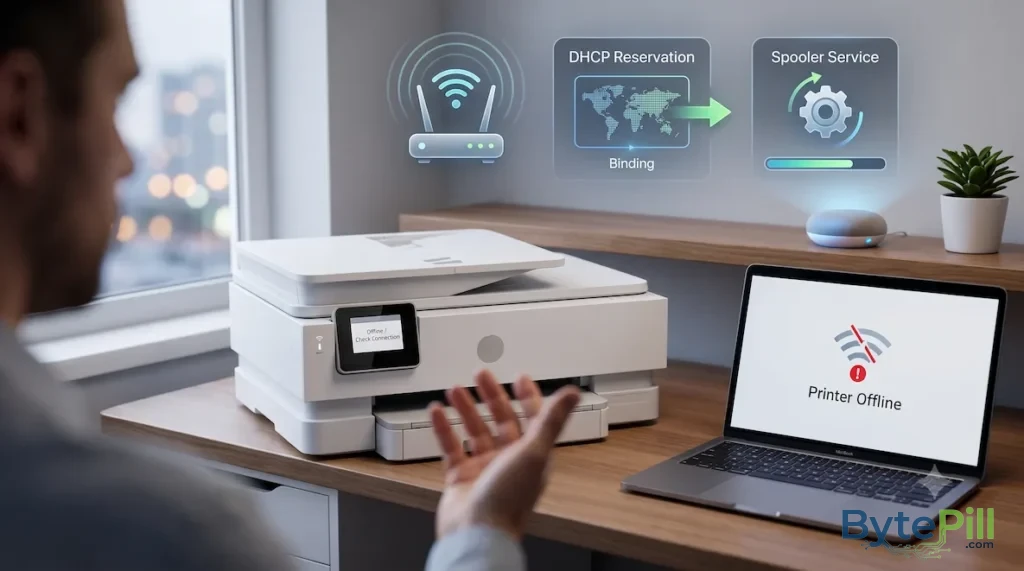
It is incredibly frustrating when you need to print something quickly, only to find that your wireless printer has suddenly decided it is “offline” even though it is powered on and connected to Wi-Fi.
In many cases, the printer itself is not broken. The problem can be caused by a temporary network issue, a stuck print queue, an incorrect Windows setting, changing IP addresses, or communication problems between the printer and your computer.
This guide walks through the most practical solutions, starting with the simplest checks and moving toward more advanced network troubleshooting.
Quick Checks Before You Start
Before changing any advanced settings, try these basic fixes:
- Restart the printer: Turn it off, wait a few seconds, and turn it back on.
- Restart your computer: This can clear temporary printer and network communication problems.
- Restart your router: A temporary Wi-Fi issue can make the printer appear offline.
- Check the Wi-Fi connection: Make sure the printer is connected to your current home or office network.
- Clear stuck print jobs: A failed document can sometimes prevent newer jobs from being processed.
- Move the printer closer to the router: If the Wi-Fi signal is weak, the printer may repeatedly lose its connection.
If the printer still shows as offline, continue with the steps below.
1. Check “Use Printer Offline” in Windows
Windows can sometimes leave a printer in offline mode after a temporary connection problem.
To check:
- Open Settings.
- Go to Bluetooth & devices > Printers & scanners.
- Select your wireless printer.
- Click Open print queue.
- In the print queue window, click Printer in the menu.
- Make sure Use Printer Offline is not enabled.
If it is checked, click it to disable the setting.
Try printing again.
If You Cannot Find This Option
Windows versions and printer drivers can display different menus. If the option is not available, don’t worry. Continue with the next troubleshooting step rather than changing unrelated settings.
2. Clear the Print Queue
A corrupted or stuck print job can prevent Windows from communicating correctly with the printer.
Open:
Settings > Bluetooth & devices > Printers & scanners
Select your printer and open the print queue.
Cancel any documents that are stuck in the queue.
If a document refuses to disappear, restart your computer and check the queue again.
You can also restart the Print Spooler service, which is responsible for managing print jobs in Windows.
3. Restart the Windows Print Spooler
The Print Spooler is a Windows service that manages documents waiting to be printed.
If it becomes stuck, your printer may appear offline even though the network connection is working.
- Press Windows + R.
- Type services.msc.
- Press Enter.
- Find Print Spooler.
- Right-click it.
- Select Restart.
Then try printing again.
Also check that its Startup type is set to Automatic.
If the service was stopped, start it and test the printer.
4. Check Whether the Printer Is Actually Connected to Wi-Fi
A printer can be powered on without actually being connected to your network. The Wi-Fi indicator being lit does not always guarantee that the printer has a working network connection.
Open the printer’s network or wireless settings and check the connected Wi-Fi network.
If your printer can print a Network Configuration Page, print one and look for information such as:
- Wi-Fi network name
- IP address
- Connection status
- MAC address
If the printer is connected to a different network than your computer, reconnect it to the correct Wi-Fi network.
5. Check the Printer’s IP Address
This is an important step if the printer repeatedly goes offline.
Your router normally assigns devices an IP address using DHCP. A printer’s IP address can change after a router restart, lease renewal, or network configuration change.
For example, the printer might previously have been:
192.168.1.25
and later receive:
192.168.1.42
If Windows is still trying to communicate with the old address, the printer may appear offline.
Find the Printer’s Current IP Address
You can usually find it from:
Printer Settings > Network > Wi-Fi / Network Information
or by printing a network configuration page.
Once you know the current IP address, you can test whether your computer can communicate with the printer.
Open Command Prompt and run:
ping 192.168.1.25Replace the example address with your printer’s actual IP address.
If you receive replies, your computer can reach the printer over the network.
If you receive timeouts, there may be a network, firewall, Wi-Fi, or printer configuration problem.
6. Reserve the Printer’s IP Address
If the printer’s IP address keeps changing, creating a DHCP reservation on your router can provide a more reliable solution.
This is generally better than manually entering a random static IP address on the printer because the router continues managing the address.
First, find the printer’s:
- MAC address
- Current IP address
Then log in to your router’s administration page.
Look for an option such as:
- DHCP Reservation
- Address Reservation
- IP Reservation
- Static DHCP
- IP & MAC Binding
The exact name depends on your router.
Add the printer’s MAC address and reserve an IP address for it.
After saving the settings, reconnect the printer to the network if necessary and restart it.
Why This Helps
The printer will consistently receive the same local IP address from your router.
That means Windows is less likely to lose track of the printer after the router restarts or the printer reconnects to Wi-Fi.
7. Check the Wi-Fi Band: 2.4 GHz vs. 5 GHz
Some wireless printers, particularly older models, support 2.4 GHz Wi-Fi but not 5 GHz.
If your router combines both bands under the same Wi-Fi name using features such as Smart Connect or Band Steering, the printer may have difficulty connecting reliably.
Check your printer’s specifications to see which Wi-Fi bands it supports.
If it only supports 2.4 GHz, connect it to the router’s 2.4 GHz network.
If necessary, temporarily separate your router’s Wi-Fi networks into different names, such as:
HomeWiFi-2.4GHomeWiFi-5G
Then connect the printer specifically to the supported network.
8. Check Your Router’s Guest Network
Make sure your printer and computer are not connected to isolated networks.
For example, if your printer is connected to a Guest Wi-Fi network, the router may prevent it from communicating with devices on the main network.
This is a security feature on many routers, not necessarily a printer failure.
Connect both the computer and printer to the same local network and test again.
9. Update or Reinstall the Printer Driver
A damaged or outdated printer driver can also cause communication problems.
On Windows:
- Open Settings.
- Go to Bluetooth & devices > Printers & scanners.
- Select the printer.
- Choose Remove.
- Download the latest driver or official printer software from the manufacturer’s website.
- Install it.
- Follow the setup instructions to reconnect the printer.
Use the official website for your printer manufacturer, such as HP, Canon, Brother, or Epson.
Avoid downloading printer drivers from random driver-download websites. Windows troubleshooting is already enough of a circus without adding mystery executables to it.
10. Add the Printer Again Using Its IP Address
If Windows still cannot maintain a connection with the printer, adding it manually by IP address can sometimes solve the problem.
First, find the printer’s current IP address.
Then:
- Open Settings > Bluetooth & devices > Printers & scanners.
- Select Add device.
- If Windows cannot find the printer, choose the option to add it manually.
- Select the option for adding a printer using an IP address or hostname, if available.
- Enter the printer’s IP address.
- Follow the setup instructions.
This can be particularly useful when Windows detects the printer but repeatedly loses communication with it.
11. Check Windows Firewall and Security Software
Security software can sometimes interfere with printer discovery or network communication.
If the printer worked normally before installing or changing security software, check whether the software is blocking local network communication.
Do not permanently disable your firewall just to test a printer.
If you temporarily disable a third-party security product for troubleshooting, re-enable it immediately afterward and configure an appropriate exception if necessary.
Windows Firewall should generally remain enabled.
12. Restart the Printer’s Network Connection
If the printer is connected to Wi-Fi but still refuses to communicate reliably, remove the saved wireless connection and connect it again.
On the printer:
- Open Network or Wireless Settings.
- Forget or remove the current Wi-Fi network.
- Restart the printer.
- Connect to your Wi-Fi network again.
- Enter the correct Wi-Fi password.
- Wait for the printer to obtain a new IP address.
- Test printing from Windows.
This can clear a corrupted wireless configuration without resetting the entire printer.
13. Test the Printer From Another Device
This is one of the most useful diagnostic tests.
Try printing from another computer or smartphone connected to the same Wi-Fi network.
If the printer works from another device
The problem is more likely related to your original Windows computer, such as:
- Printer drivers
- Windows printer configuration
- Print Spooler
- Firewall settings
- Saved printer information
If the printer is offline on every device
The problem is more likely related to:
- The printer’s Wi-Fi connection
- Router configuration
- Printer network settings
- IP address changes
- Printer hardware or firmware
This simple test can prevent you from changing ten Windows settings when the actual problem is sitting next to the router.
14. Update the Printer Firmware
Printer manufacturers sometimes release firmware updates that improve wireless stability, compatibility, and security.
Check your manufacturer’s official support page for your exact printer model.
If the printer provides an automatic firmware update option, you may also be able to update it directly through its network settings.
Do not interrupt a firmware update while it is in progress.
When Should You Reset the Printer?
A network reset or factory reset should not be your first solution.
Consider a network reset if:
- The printer cannot connect to your Wi-Fi correctly.
- The wireless configuration appears corrupted.
- You recently changed your router or Wi-Fi password.
- The printer was previously connected to another network.
A factory reset is more drastic because it can erase printer settings and require you to configure the device again.
If possible, try the simpler solutions first.
When Should You Contact Support?
You may need professional support if:
- The printer repeatedly loses Wi-Fi even after testing another network.
- Multiple devices cannot communicate with it.
- The printer’s Wi-Fi hardware appears to be malfunctioning.
- The printer cannot obtain an IP address.
- The printer repeatedly restarts or freezes.
- The issue began after a firmware update and cannot be recovered normally.
If the printer works correctly over USB but repeatedly fails over Wi-Fi, that is a useful clue that the problem may be isolated to its wireless networking rather than the printing hardware itself.
Quick Checklist
If you want the shortest troubleshooting path, work through these steps in order:
- Restart the printer, computer, and router.
- Make sure the printer and computer are on the same Wi-Fi network.
- Clear the print queue.
- Disable Use Printer Offline in Windows.
- Restart the Print Spooler service.
- Check the printer’s current IP address.
- Test the IP address with ping.
- Reserve the printer’s IP address through DHCP on the router.
- Check whether the printer requires 2.4 GHz Wi-Fi.
- Update or reinstall the official printer driver.
- Test the printer from another device.
- Update the printer’s firmware if an official update is available.
Frequently Asked Questions
Why does my wireless printer keep going offline?
Common causes include unstable Wi-Fi, changing IP addresses, stuck print jobs, Print Spooler problems, outdated drivers, incorrect Windows printer settings, or router configuration issues.
Why does my printer say offline when it is connected to Wi-Fi?
Being connected to Wi-Fi does not necessarily mean Windows can communicate with the printer. The printer may have received a different IP address, or Windows may still be using an outdated printer configuration.
Should I give my wireless printer a static IP?
Using a DHCP reservation is generally a good solution for a printer that frequently changes IP addresses. It allows the router to consistently assign the same address to the printer.
Why does my printer work on my phone but not on my Windows PC?
If the printer works from your phone, the printer and network are probably functioning. The issue may instead be related to Windows, the printer driver, firewall settings, or the printer’s configuration on that specific computer.
Why does my printer keep disconnecting from Wi-Fi?
Possible causes include weak signal strength, interference, unsupported Wi-Fi bands, router compatibility problems, changing IP addresses, or outdated printer firmware.
Should my printer use 2.4 GHz or 5 GHz Wi-Fi?
It depends on the printer. Many older wireless printers support only 2.4 GHz, while newer models may support both 2.4 GHz and 5 GHz.
Check your printer’s specifications before changing your router’s wireless settings.
Final Thoughts
A wireless printer that keeps going offline does not necessarily mean the printer is failing.
Start with the simple checks: restart your devices, verify the Wi-Fi connection, clear the print queue, and make sure Windows is not forcing the printer into offline mode.
If the problem keeps returning, pay particular attention to the printer’s IP address. A changing IP address can cause Windows to lose communication with a network printer, and a DHCP reservation on your router can provide a more reliable long-term solution.
If the printer still disconnects, test it from another device. That will help determine whether you should troubleshoot Windows or focus on the printer and network.
The best troubleshooting approach is not to change every setting you can find. Identify where the connection is failing first, then fix that specific part.
Related Articles You Might Like :
How to Fix Android Auto Keeps Disconnecting
eSIM Stuck on “Activating”? How to fix it on Iphone & Android