How to Fix ADB “Access Denied” When Copying App Data on Android 16
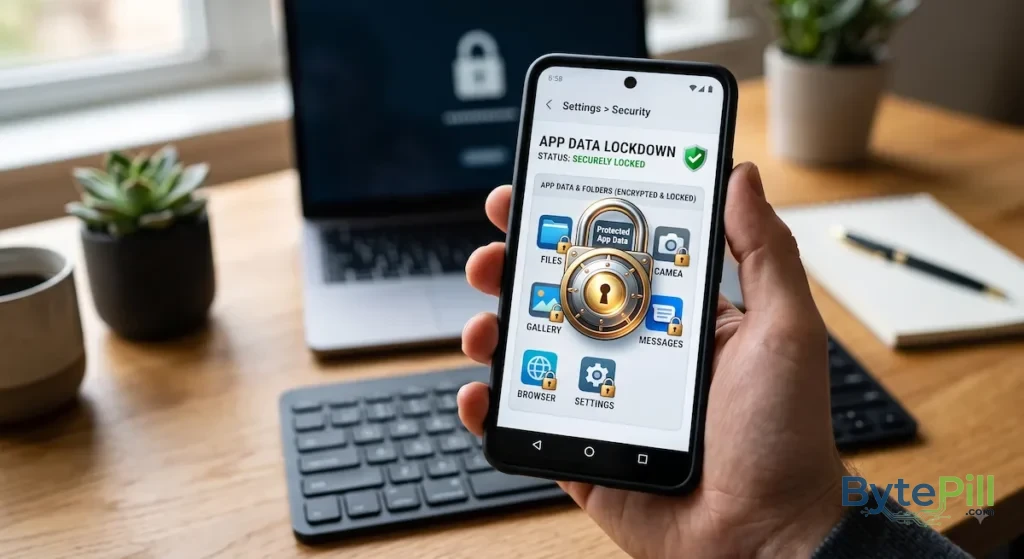
Trying to copy app files from your Android phone to a PC with ADB can sometimes end with a frustrating “Access Denied” or “Permission Denied” message.
The problem becomes especially confusing when ADB itself is working correctly, your phone is recognized by the computer, and commands such as adb devices work normally.
On modern Android versions, including Android 16, the issue is often caused by Android’s app sandbox and storage restrictions. ADB does not automatically give you unrestricted access to another app’s private data.
The important part is identifying which folder you are trying to access and whether the app allows that type of access.
This guide explains what causes the error and the practical ways to copy or back up app data without rooting your phone.
Why Does ADB Say “Access Denied” on Android 16?
Android separates application files into different storage areas, and they do not all have the same access rules.
For example, an app may have private data under:
/data/data/<package-name>/
It may also have app-specific external storage under:
/sdcard/Android/data/<package-name>/
These locations are protected differently.
The fact that USB Debugging is enabled does not mean that ADB can freely read every application’s private files.
Common reasons for an access error include:
- The app’s private data is protected by Android’s application sandbox.
- The app is not debuggable, so run-as cannot be used.
- The files are inside a restricted Android/data directory.
- The app or developer has disabled backup functionality.
- You are trying to access a directory that requires elevated privileges.
- ADB is connected but the computer has not been authorized correctly.
Before trying complicated commands, determine exactly which folder you need.
First: Check Whether ADB Is Working Correctly
Before troubleshooting file permissions, make sure your PC can actually communicate with your phone.
Connect the phone with a USB cable and make sure USB Debugging is enabled.
Open Command Prompt or Terminal on your computer and run:
adb devices
You should see something similar to:
XXXXXXXX device
If your phone appears as device, the ADB connection is working.
If it appears as:
unauthorized
look at your phone’s screen for the Allow USB debugging? prompt and approve the computer.
If no device appears at all, the problem is with the ADB connection rather than file permissions.
1. Try run-as for Debuggable Apps
If you are trying to access an app’s private data under /data/data/, the run-as command is one of the safest options when it is supported.
However, there is an important limitation:
run-as normally works only with applications that are debuggable.
This is common with apps you are developing yourself, test builds, and some open-source applications. Most production apps installed from Google Play will not allow this.
Check the App Package Name
First, determine the package name of the application.
It usually looks something like:
com.example.game
Then try:
adb shell run-as com.example.game
If the command succeeds, you can work within the app’s permitted sandbox.
For example, you can check the available files with:
ls
You can also check the current location with:
pwd
Copy the Files to Shared Storage
If the app allows this operation, you can copy a backup file to a location accessible through normal storage.
For example:
cp -r files /sdcard/Download/AppBackup
Then exit the app’s shell:
exit
After that, pull the copied files to your computer:
adb pull /sdcard/Download/AppBackup C:\AppBackup
Replace the paths and package name with the ones appropriate for your device.
What If run-as Says “Package Is Not Debuggable”?
That is not an ADB installation problem.
It means the application does not permit this method.
For a normal production application, you will usually need another backup or file-access method.
2. Use Shizuku for Supported File Operations
If run-as does not work, Shizuku can be useful for certain file-management tasks without rooting the phone.
Shizuku allows compatible applications to use privileged Android APIs through a service started using ADB or another supported method.
However, Shizuku is not the same thing as root access.
It does not magically remove every Android storage restriction, and compatibility depends on the Android version, the file manager, and the exact operation you are trying to perform.
How to Set Up Shizuku
- Install Shizuku from its official source or Google Play where available.
- Open Shizuku and follow its instructions for starting the service.
- On supported Android versions, you can usually start it using Wireless debugging.
- Open a compatible file manager that supports Shizuku.
- Grant the requested Shizuku permission.
- Try accessing the location you need.
A compatible file manager may be able to perform operations that the standard Android file picker does not expose.
Important
Do not assume that Shizuku provides unrestricted access to:
/data/data/
Private application data remains protected by Android’s security model.
If the application or Android version prevents the requested operation, Shizuku cannot simply turn that restriction off.
3. Check Whether You Actually Need /data/data/
This is one of the most important points when troubleshooting ADB access errors.
You may think you need:
/data/data/com.example.game/
when the files you want are actually stored somewhere else.
Many applications keep user-accessible files under external app-specific storage such as:
/sdcard/Android/data/com.example.game/
or:
/sdcard/Android/media/com.example.game/
The exact location depends on the application.
If the files are stored in shared or app-specific external storage, you may have more options for copying them than you would with private internal data.
Check the App’s Documentation
For games and other applications, search the developer’s documentation or support pages for information about where save files are stored.
This is safer than randomly copying directories and hoping the important file is hiding somewhere inside.
4. Try ADB From Shared Storage
If the files are already stored somewhere accessible through shared storage, ADB can often copy them without needing root.
For example:
adb pull /sdcard/Download/AppBackup C:\AppBackup
You can also inspect accessible directories using:
adb shell ls /sdcard/Download
If the command works there but fails when you try /data/data/, that is a strong indication that the problem is Android’s access restrictions rather than a broken ADB installation.
5. Check USB Debugging Authorization
Sometimes the error is caused by an incomplete ADB authorization rather than Android storage restrictions.
On your phone:
- Open Developer options.
- Find USB debugging.
- Use Revoke USB debugging authorizations if necessary.
- Disconnect the USB cable.
- Reconnect the phone.
- Watch for the Allow USB debugging? prompt.
- Tap Allow.
Then run:
adb devices
If the device appears as device, try your original command again.
6. Restart the ADB Server
If ADB is behaving strangely even though the phone is authorized, restarting the ADB server can clear a temporary connection problem.
Run:
adb kill-server
Then:
adb start-server
Finally:
adb devices
Reconnect the phone if necessary and test the command again.
This will not bypass Android’s storage restrictions, but it can fix ADB connection problems that look more mysterious than they really are.
7. Use the App’s Built-In Backup Feature
If your goal is to preserve game saves, settings, or application data, check whether the application itself provides a backup or export feature.
Some apps support:
- Cloud synchronization
- Account-based save synchronization
- Export/import functions
- Local backup files
- Developer-provided backup tools
This can be significantly safer than manually copying private application directories.
It also avoids depending on undocumented file locations that may change after an Android or app update.
8. Why adb pull /data/data/… Usually Fails
A common command users try is:
adb pull /data/data/com.example.game/
and then wonder why Android responds with a permission error.
The reason is simple: ADB does not automatically become root just because USB Debugging is enabled.
The /data/data/ directory contains private application data.
Android’s sandbox is specifically designed to prevent one application, or an ordinary user-level process, from freely reading another application’s private files.
Without an appropriate debugging configuration, backup mechanism, privileged access, or root access, a direct adb pull operation against another app’s private directory may fail.
This is a security feature, not an ADB bug.
9. What About adb backup?
You may find older tutorials recommending commands such as:
adb backup -f appdata.ab -noapk com.example.game
This method appears frequently in older Android backup guides.
However, ADB backup is not a reliable modern solution for Android 16.
Android’s backup behavior and application support have changed significantly over time, and apps can also restrict or exclude data from backup.
For that reason, do not build your Android 16 backup workflow around old adb backup tutorials.
If an application provides its own supported backup method, prefer that approach.
10. What If You Need Private App Data Specifically?
If the files you need are genuinely inside:
/data/data/<package-name>/
and the app is not debuggable, normal ADB commands may not be enough.
Your practical options are usually:
Use the App’s Own Backup System
This is the safest option when available.
Use a Supported Backup Tool
Some applications provide their own export or backup functionality.
Use Shizuku Where Supported
Shizuku can help compatible file managers perform certain privileged operations, but it does not guarantee access to every private application directory.
Use Root Access
Root can provide access to protected application data, but it comes with significant security and stability risks and is not necessary for most users.
Do not root a phone simply because one game save file is hiding from you. Humanity has endured enough questionable decisions.
11. Check Whether the App Encrypts Its Save Data
Even if you successfully copy an application’s files, that does not necessarily mean you can restore or read them elsewhere.
Some applications encrypt or bind save data to:
- Your account
- Your device
- An installation ID
- Android Keystore keys
- Application-specific encryption keys
This means a copied save file may exist perfectly on your PC but still fail to work after being moved to another device.
If the developer provides an official export or cloud-sync system, it is usually the better choice.
12. Android 16 Storage Restrictions Are Not the Same as a Broken ADB
If ADB works with commands such as:
adb devices
and you can access shared storage but receive Permission Denied for a protected application directory, your ADB setup may be working perfectly.
The restriction is coming from Android’s security model.
This distinction matters because repeatedly reinstalling ADB, changing USB cables, or restarting the computer will not grant access to a protected directory.
The correct solution depends on where the files are located and what permissions the application allows.
Quick Troubleshooting Checklist
If you encounter an ADB Access Denied error on Android 16, work through these checks:
- Run adb devices.
- Make sure the phone is authorized for USB debugging.
- Restart the ADB server if the connection is unstable.
- Identify the exact folder you are trying to access.
- If the folder is /data/data/, check whether the app is debuggable.
- Try run-as for supported debug builds.
- If the files are in shared storage, try adb pull from that accessible location.
- Consider Shizuku for supported file-management operations.
- Check whether the app has its own backup or export feature.
- Do not rely on old adb backup tutorials as a guaranteed Android 16 solution.
- Remember that copied save files may be encrypted or tied to the original device or account.
- Use root only if you understand the security and warranty implications and genuinely need access to protected data.
Frequently Asked Questions
Why does ADB say Access Denied on Android 16?
Usually because the command is trying to access protected application data. USB Debugging does not automatically provide unrestricted access to /data/data/ or every restricted storage directory.
Can ADB access /data/data/ without root?
Not generally for another non-debuggable application. The app’s sandbox prevents ordinary ADB access to its private data.
Does run-as work with every Android app?
No. The application generally needs to be debuggable for run-as to work.
Can Shizuku access private app data?
Shizuku can give compatible applications additional privileges, but it does not automatically provide unrestricted root-level access to every private application directory.
Can I copy Android game saves to my PC without root?
Sometimes. It depends entirely on where the game stores its save data and whether the application allows the data to be accessed or backed up.
If the save is in accessible shared storage, copying it may be straightforward. If it is stored in private application data, additional restrictions may apply.
Why can I see the Android/data folder but cannot copy its contents?
Modern Android versions apply additional restrictions to app-specific external storage. Access can also vary depending on the file manager, Android version, and application.
Will copying an app’s files back to another phone restore the game?
Not necessarily. Some games store saves in private locations, encrypt them, or associate them with an account or device.
Is rooting required to back up Android app data?
No. Root is not required for every type of backup. However, accessing another application’s protected private data can require elevated privileges if the app does not provide a supported backup method.
Final Thoughts
An ADB Access Denied error on Android 16 does not necessarily mean that ADB is broken.
In many cases, Android is simply preventing access to protected application data as intended.
Start by checking your ADB connection with adb devices, then identify exactly where the files are stored. If you are working with a debuggable application, run-as may be enough. For supported file-management tasks, Shizuku can provide another root-free option.
If the data is stored in a protected private directory and the application does not provide a backup mechanism, there may be no simple ADB command that can bypass the restriction.
The safest approach is to use the application’s own backup or export feature whenever possible. If you need deeper access, understand exactly what Android is protecting before changing your device’s security configuration.
The important thing is to distinguish between an ADB connection problem and an Android permission restriction. Once you know which one you’re dealing with, troubleshooting becomes much more straightforward.