How to Fix iPhone Alarm Going Off Without Sound on iOS 26.6
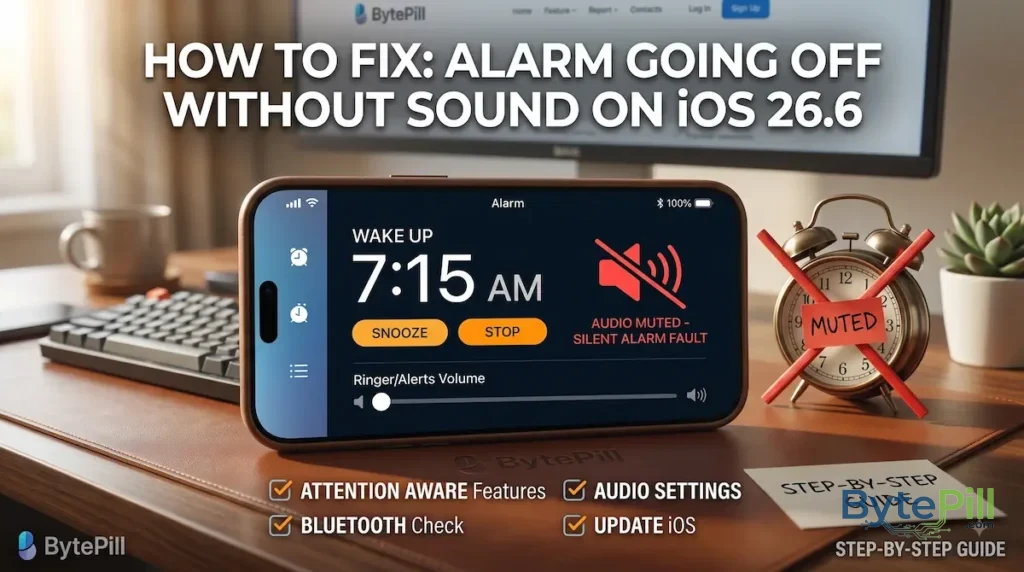
If your iPhone alarm goes off but produces no sound, don’t assume the speaker is broken. In many cases, the alarm itself is working, but its sound level, alarm tone, or another iPhone setting is preventing you from hearing it.
This can be especially confusing because the alarm appears normally on the screen and may still vibrate, even though there is no audible alert.
If your iPhone alarm is going off without sound on iOS 26.6, work through the fixes below in order. Start with the alarm volume and sound because those are the easiest things to verify.
1. Turn Up the iPhone Alarm Volume
The first thing to check is the Ringer and Alerts volume.
Your iPhone has separate volume controls for media such as YouTube videos and music, and for system alerts such as calls and alarms. Increasing the volume while watching a video does not necessarily increase your alarm volume.
To check it:
- Open Settings.
- Tap Sounds & Haptics.
- Find the Ringer and Alerts slider.
- Move the slider to the right.
- Test the sound using the preview that appears when adjusting the volume.
Prevent the Volume From Changing Accidentally
If your alarm volume keeps becoming too low, check Change with Buttons under the Ringer and Alerts slider.
If you frequently use the physical volume buttons to control media, consider turning Change with Buttons off. This prevents the side buttons from accidentally lowering your ringtone and alert volume.
Important: The volume you see in Control Center while playing music is not the same thing as your alarm volume.
2. Check the Alarm Sound Isn’t Set to None
An alarm can trigger normally while remaining silent if its sound is set to None.
To check the alarm:
- Open the Clock app.
- Tap Alarms.
- Tap Edit.
- Select the alarm that is causing the problem.
- Tap Sound.
- Make sure None is not selected.
- Choose a built-in alarm sound such as Radar.
- Tap Back, then Save or Done.
For troubleshooting, use one of Apple’s built-in tones rather than a custom song. This helps determine whether the problem is with the alarm itself or the selected audio.
3. Test the Alarm Immediately
You don’t need to wait until tomorrow morning to discover that your alarm is still silent. Humanity has invented enough technology to avoid that particular experiment.
Set a test alarm for a few minutes in the future.
Then lock the iPhone and wait for it to trigger.
If the test alarm produces sound, the original alarm may have had an incorrect sound or configuration.
If the test alarm is also silent, continue with the next steps.
4. Turn Off Attention Aware Features
On iPhones with Face ID, Attention Aware Features can reduce the volume of certain alerts when the iPhone detects that you’re looking at it.
If you suspect this feature is interfering with alert volume, temporarily disable it and test the alarm again.
Go to:
Settings → Face ID & Passcode → Attention Aware Features
Turn the feature off.
Then create another test alarm.
Why This Setting Matters
Attention Aware Features uses the TrueDepth camera system to determine whether you’re paying attention to the iPhone.
It is not specifically an “alarm volume” setting, but it can affect the volume of some alerts. Disabling it temporarily is therefore a useful troubleshooting step if your alert volume appears unexpectedly low.
5. Don’t Rely on Silent Mode to Test the Alarm
The iPhone’s Silent Mode does not normally silence Clock alarms.
Therefore, don’t assume that switching the Ring/Silent control or Action button to silent mode is the reason your alarm has no sound.
Instead, focus on:
- Ringer and Alerts volume
- The alarm’s selected Sound
- Speaker output
- iOS software
- Alarm configuration
If your alarm is silent even though the Ringer and Alerts volume is high and a sound is selected, continue troubleshooting.
6. Check Whether Your iPhone Speaker Works
Before changing more settings, determine whether the problem is actually related to the speaker.
Open a video or music app and play some audio.
Then check whether you can hear it normally through the iPhone’s built-in speakers.
If Other Audio Is Also Silent
The problem may not be specific to the alarm.
Check:
- Whether the volume is turned up.
- Whether the speaker openings are blocked.
- Whether the iPhone is connected to an audio accessory.
- Whether the device needs to be restarted.
- Whether the speaker produces sound through other apps.
If normal media audio is also extremely quiet or completely silent, the problem may require separate speaker troubleshooting.
If Music and Videos Work Normally
If other audio plays normally but alarms remain silent, the problem is more likely related to the alarm configuration or iOS rather than a failed speaker.
7. Temporarily Disconnect Audio Accessories
If you have AirPods, headphones, a car system, or another Bluetooth audio accessory connected, temporarily disconnect it while troubleshooting.
However, don’t assume that a Bluetooth connection automatically means your alarm sound has been routed away from the iPhone. iPhone Clock alarms are designed to use the iPhone’s built-in speaker, so Bluetooth is not normally the explanation for a completely silent alarm.
Still, disconnecting accessories can help eliminate unusual audio-routing or connection behavior while testing.
To temporarily disconnect Bluetooth devices:
Settings → Bluetooth
You can also disconnect the specific accessory from its device settings.
Then create a test alarm and check the result.
8. Restart Your iPhone
A temporary iOS audio or Clock process problem can sometimes disappear after a restart.
Restart your iPhone normally, then create a test alarm.
After the restart:
- Confirm the Ringer and Alerts volume.
- Check the alarm’s Sound setting.
- Set an alarm a few minutes ahead.
- Lock the iPhone.
- Wait for the alarm to trigger.
If the alarm works after restarting, the problem may have been a temporary software issue rather than a hardware failure.
9. Delete the Problem Alarm and Create a New One
If one particular alarm remains silent while newly created alarms work normally, recreate the affected alarm.
Open:
Clock → Alarms
Then:
- Delete the affected alarm.
- Create a new alarm.
- Select a built-in sound.
- Make sure the alarm is enabled.
- Set a test time a few minutes ahead.
- Wait for it to trigger.
This is a better troubleshooting step than immediately deleting every alarm you have.
If only one alarm is affected, there is no reason to destroy your entire collection of wake-up times like some kind of digital scorched-earth campaign.
10. Check Sleep Schedule Alarms Separately
If you’re using the Sleep Schedule feature in the Health app rather than a standard Clock alarm, check its settings separately.
Open the Health app and look for your sleep settings.
Make sure:
- Your sleep schedule is enabled.
- The desired wake-up time is correct.
- The alarm is enabled.
- The wake-up alarm has a selected sound.
- The volume is sufficient.
A Sleep Schedule alarm and a manually created Clock alarm are not configured in exactly the same place, so troubleshooting one does not necessarily change the other.
11. Update iOS
If the alarm problem started immediately after an iOS update, or multiple users are experiencing similar behavior, the issue may be software-related.
Check for a newer iOS update:
Settings → General → Software Update
If an update is available, install it and test the alarm again afterward.
Apple may fix system-level bugs through subsequent iOS releases, so running the latest available version is preferable to staying on an older release when troubleshooting unexplained alarm behavior.
12. Check for a Temporary Speaker or Audio Problem
If the alarm is completely silent but other sounds are also affected, inspect the iPhone’s speaker openings.
Dust, debris, a case, or a screen protector can sometimes affect perceived speaker volume.
Try:
- Removing the case temporarily.
- Checking whether the speaker openings are obstructed.
- Playing audio at a moderate volume.
- Testing sound through several different apps.
Do not insert sharp objects into the speaker openings or use excessive force while cleaning them.
If the speaker remains unusually quiet or produces distorted sound across multiple apps, the issue may be hardware-related.
13. Use a Test Alarm to Identify the Cause
At this point, one simple test can narrow the problem down considerably.
Create a new alarm with:
- A standard Apple alarm sound.
- A clearly audible Ringer and Alerts volume.
- No unnecessary audio accessories connected.
- Attention Aware Features temporarily disabled.
- The latest available iOS version.
Set it for a few minutes in the future.
If the New Alarm Works
The original alarm configuration is probably the problem.
Recreate the affected alarm or check its sound and schedule settings.
If the New Alarm Is Still Silent
Test other system sounds and media.
If everything else works but every Clock alarm remains silent, the issue is more likely related to iOS or the Clock app.
If the entire iPhone has audio problems, investigate the speaker and audio system instead.
14. Don’t Immediately Reset Your iPhone
A factory reset should not be your first solution to an alarm problem.
Before considering a major reset, try:
- Checking Ringer and Alerts volume.
- Checking the alarm sound.
- Testing a new alarm.
- Disabling Attention Aware Features.
- Restarting the iPhone.
- Checking Sleep Schedule settings.
- Updating iOS.
- Testing the iPhone’s speaker with other audio.
A factory reset removes personal data and settings and creates a lot of work. It is a particularly dramatic response to an alarm that decided to sleep in with you.
When Should You Contact Apple Support?
Consider professional support if:
- The iPhone has no sound in multiple apps.
- The speaker produces distorted or extremely quiet audio.
- Several alarms remain silent after all software troubleshooting.
- The issue started after physical damage or liquid exposure.
- The speaker works intermittently.
- A current iOS update does not resolve the problem.
If other system sounds and media work normally but every alarm remains silent, document the steps you’ve already tried before contacting Apple Support.
This makes it easier to determine whether the problem is software-related or requires further hardware diagnosis.
Quick Fix Checklist
If your iPhone alarm is going off without sound, follow this order:
- Settings → Sounds & Haptics and increase Ringer and Alerts volume.
- Check that the alarm’s Sound is not set to None.
- Create a test alarm using a built-in Apple tone.
- Temporarily disable Attention Aware Features.
- Test the iPhone speaker with music or video.
- Disconnect Bluetooth accessories temporarily.
- Restart the iPhone.
- Delete and recreate the affected alarm.
- Check your Sleep Schedule if you’re using a wake-up alarm.
- Install any available iOS update.
- If all audio is affected, investigate the speaker or contact Apple Support.
Frequently Asked Questions
Why is my iPhone alarm going off but making no sound?
The most common things to check are the Ringer and Alerts volume and the alarm’s selected sound. Make sure the alarm is not set to None, then create a test alarm using a built-in Apple tone.
Does Silent Mode silence iPhone alarms?
Normally, no. Silent Mode is not supposed to mute Clock alarms. If an alarm is silent, check the alarm sound and Ringer and Alerts volume instead.
Why is my iPhone alarm so quiet even though my volume is high?
Your media volume and alarm volume are separate. Go to Settings → Sounds & Haptics and increase the Ringer and Alerts slider.
Can Attention Aware Features make an iPhone alarm quieter?
Attention Aware Features can reduce the volume of certain alerts when the iPhone detects that you’re looking at it. Temporarily disabling the feature can help determine whether it is involved in the problem.
Will Bluetooth headphones make my iPhone alarm silent?
Normally, no. iPhone Clock alarms are designed to play through the iPhone’s built-in speaker. However, temporarily disconnecting Bluetooth accessories is a useful diagnostic step when investigating unusual audio behavior.
Why does my iPhone alarm vibrate but make no sound?
If the alarm vibrates but produces no sound, first check the alarm’s Sound setting and the Ringer and Alerts volume. If other iPhone sounds are also silent, investigate the speaker or audio system.
Should I reset my iPhone because the alarm has no sound?
No. A factory reset should be a last resort. Check the alarm sound, alert volume, Attention Aware Features, speaker, software updates, and alarm configuration first.
Final Thoughts
When an iPhone alarm goes off without sound, the problem is usually worth troubleshooting before assuming that the speaker has failed.
Start with the two settings that matter most: Ringer and Alerts volume and the alarm’s Sound selection. Then test a new alarm, check Attention Aware Features, restart the iPhone, and verify that the speaker works normally with other audio.
If you’re using a Sleep Schedule alarm, check its settings separately. If every alarm remains silent despite normal system audio, updating iOS and testing the device further can help determine whether you’re dealing with a software problem.
The fastest way to find the cause is not to change every setting on the iPhone. Test one thing at a time and use a short test alarm after each major change. That way, you can identify exactly what fixed the problem instead of waking up tomorrow and discovering that your phone and your alarm clock have formed a temporary alliance against you.
Recommended Posts
How to Fix Google Play Services Won’t Install or Show on Chinese ROM Phones
How to Fix ADB “Access Denied” When Copying App Data on Android 16
eSIM Stuck on “Activating”? How to Fix It on iPhone & Android